Myth Quests
Quests, dialogue and a journal for Unreal Engine 5.8. This manual takes you from installing the plugin and building a first simple quest to chapters, arenas and connecting the quest system to any game, from Blueprint and from C++.
1What Myth Quests is
What the plugin does
Myth Quests is two things in one Unreal Engine 5.8 plugin:
- A quest editor inside Unreal. A separate window (Window → Myth Quests) where a designer writes quests as a graph: steps, goals, branches, endings, time limits, rewards, facts, dialogue scenes, journal lines, radio chatter and "game actions", the commands a quest gives the game. Quests are grouped into chapters and campaigns.
- A quest system in the game. A ready runtime: the Get Myth Quests subsystem, the player and shared-state components, the journal, saving, networking, and the player's own interface (marks, pins, tracker, prompt, dialogue window, journal, notifications; see the player layer). Single player, listen server and dedicated server; the journal replicates to every client, and progress is written into your own save game. A packaged dedicated server can only be built with a source-built Unreal: the Epic Games Launcher engine has no Win64 Server target ("Server targets are not currently supported from this engine distribution").
The Publish… button connects the two: the editor checks the project and turns it into ordinary Unreal assets, a quest catalog and one asset per quest. The game works only with those assets; the editor project itself never goes into the game build.

A quest's route: from idea to game
- Project. All the quests, characters, facts and dialogue of one game live in one project asset (Myth Quests Project) in the Content Browser. You open it in the Myth Quests editor.
- Quest. You create a quest in the project and build its graph: start → steps with goals → branches → endings.
- Check. The editor highlights problems by itself: a broken branch, a goal with no event, a fact nobody writes.
- Publish. The publish button writes the catalog and the quests to
/Game/MythQuests/<project key>/and produces the "integration sheet", the list of what the quests need from the game: which events to send, which facts to write, which game actions to carry out. - Game. The catalog is registered in the project settings, and the game starts quests from Blueprint or C++, sends events ("lit the signal fire", "killed an enemy") and shows the journal. Everything else (moving through steps, endings, rewards, saving, networking) is done by the plugin.
Glossary
| Term | What it is |
|---|---|
| Project | A Myth Quests Project asset: the whole narrative of one game, its quests, chapters, characters, facts, dialogue and pictures. It lives only in the editor. |
| Quest | A graph of steps with one start and one or more endings. |
| Step and goal | A step is a node of the graph. A goal is what the player must do at that step ("light the fire", "kill 10 enemies"); a goal can have a counter. |
| Event | A signal from the game to the quest system: "X happened". Goals wait for events. |
| Fact | A named value (yes/no or a number) the world remembers: "the bridge is burnt", "reputation 12". Conditions and branches read facts. |
| Ending | A quest's outcome: completed, failed, or any resolution of your own. Rewards are given at endings. |
| Chapter and campaign | A chapter is a group of quests (an act of the story). A campaign is the order of chapters: the next one opens on an ending of the previous one. |
| Game action | A command with parameters from a quest to the game: "open the gate", "spawn a squad", "give an item". The game implements the action itself. |
| Catalog | The Myth Quest Catalog asset Publish writes: the list of quests the game knows. It is registered in Project Settings → Myth Quests → Catalogs. |
| Quest scope | Whose quest it is: personal (each player has their own), party (one for the whole group) or world. |
2Installation and first launch
You need Unreal Engine 5.8 (tested on 5.8.4) on Windows. The quest editor inside Unreal runs only on Windows; quests in a packaged game run on Win64 (Mac, Android and iOS are declared but not tested; Linux is not supported).
Installation
- From Fab. Install the plugin into the engine through Fab; it is installed as an engine plugin, already
built.
Expected: the engine's plugins folder has aMythQuestsfolder withMythQuests.uplugin,Source/,Content/,Examples/andDocs/. - Or by hand. Copy the
MythQuestsfolder into your project'sPlugins/folder (create it if there is none). The folder from Fab (it hasBinaries/) opens without a rebuild; a folder with sources only is built when the project opens, and then Unreal asks for the C++ tools, as with any plugin that has code.
Enabling the plugin
- Open the project, Edit → Plugins, find Myth Quests (Gameplay category), tick it and restart the editor when it asks.
- Expected after the restart: Project Settings has a
Myth Quests page, and the Window menu has a Myth Quests item that opens the
quest editor.
If the item is missing: the plugin is not enabled, or the project is not open on Windows.
Opening the editor
- Window → Myth Quests. The editor window opens on its Home page (below, under
Home). The console command
MythQuests.OpenEditordoes the same. - A new project. On Home press New Project. Unreal shows its usual asset save dialog
titled New Myth Quests Project (default folder
/Game, nameMythQuestsProject). A project can only be saved inside/Game.
Expected: a Myth Quests Project asset appears in the Content Browser and opens at once in the same editor window. - Or from the Content Browser. Add → Myth Quests → Myth Quests Project creates the same asset; double-clicking it opens it in the editor.
- An existing project. Open Project on Home, or double-click the project asset. Home lists recent projects and quests under Recent projects and Continue quests.
Where your work is kept. A project is an ordinary Unreal asset: you save it, commit it to source control
and move it with the project. Until the asset is saved, edits live in the editor's memory. Before every save the
previous version of the project is copied to Saved/MythQuests/SourceRecovery; the
Project → Recover previous project menu item brings it back. If a save fails, your edits stay
in the window: save again, or write the project out as a file (Project → Save project
file…).
Plugin settings
The plugin has two settings pages.
Project Settings → Game → Myth Quests

Config/DefaultGame.ini and shipped with the
game build.| Group | Field (default) | What it sets |
|---|---|---|
| Catalogs | Catalogs (array) | The quest catalogs every instance of the game loads in the background at start, on the server and on every client. A catalog that is not in the list is unknown to the game. |
| Network | Requests Per Second (20) | How many requests per second are accepted from one player's client. |
| Request Burst (40) | How many requests can arrive at once above that rate. | |
| Shard Packing Entries (1024) | An internal setting for packing replicated entries. | |
| Player Key Grace Seconds (5) | How long the server waits for a player key after login; if it does not arrive, the player plays the session as new. | |
| Travel Hold Seconds (60) | On a full level change, how long to wait for a player to load before treating them as gone. | |
| Debugger | Client Debug Commands (In the editor only) | Whether the server runs clients' debug commands: only in the editor, also in packaged Development builds, or never. |
| Radio | Radio Reading Chars Per Second (15) | Reading speed for a radio line with no sound and no duration. |
| Radio Reading Pad Seconds (1) | Extra time added to such a line. |
Editor Preferences → Plugins → Myth Quests

Maximum editor windows (5): how many Myth Quests windows can be open at once, from 1 to 5.
3The editor window
The editor is one Unreal tab. It shows either the Home page or the open project; the house button in the top-left corner switches between them. Up to five such tab windows can be open at once.
Home

| Element | What it does |
|---|---|
| The Continue · open in this window, as you left it card (in large type, the quest you left off at) and the Continue button | Returns to the project that was open in this window, at the same place. The card shows only when you came to Home from a project. |
| New Project | A new project asset (see Opening the editor). |
| Open recent, Open Project | Open a recent project or any project. |
| Refresh | Re-read the lists. |
| Recent projects: Open, Open in new window, Remove from recents | Open the project in this window, in a new window beside it, or remove it from the list (the asset itself is not deleted). |
| Continue quests: Continue | Open the project straight at that quest. |
| Create asset: New Character, New Dialogue, New Location, New Item, Open Library | Quickly add a record to the shared library (characters, dialogue, locations, items) that projects then use. |
| Starter templates: Preview, Browse all templates | Starting points: an empty project (Blank project), a branching choice (Branching choice), a branching conversation (Branching conversation), an investigation (Investigation). |
| On the left: Home, Projects, Library, Templates | The sections of the Home page. |
A project: the parts of the window

The window has five areas:
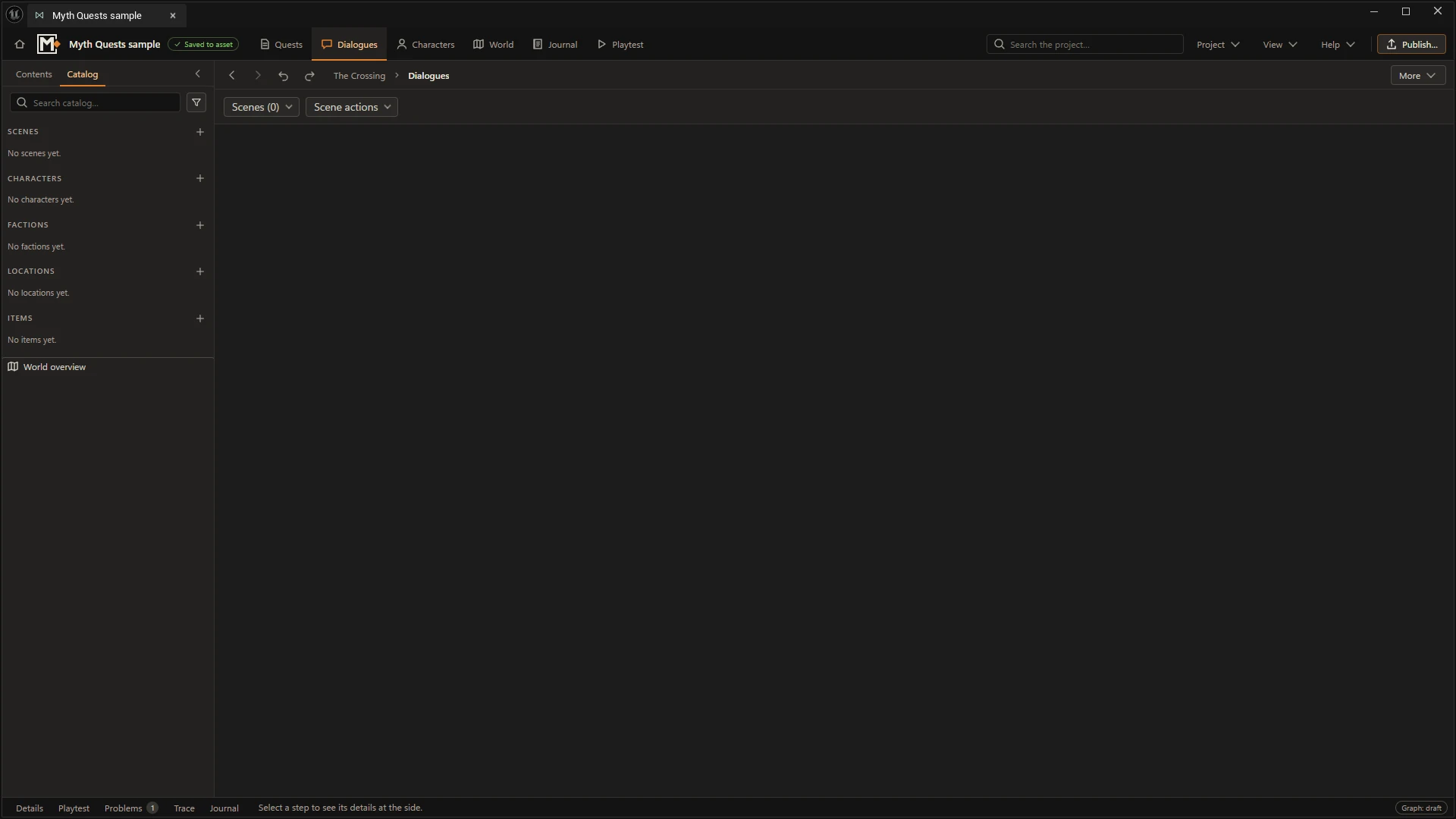
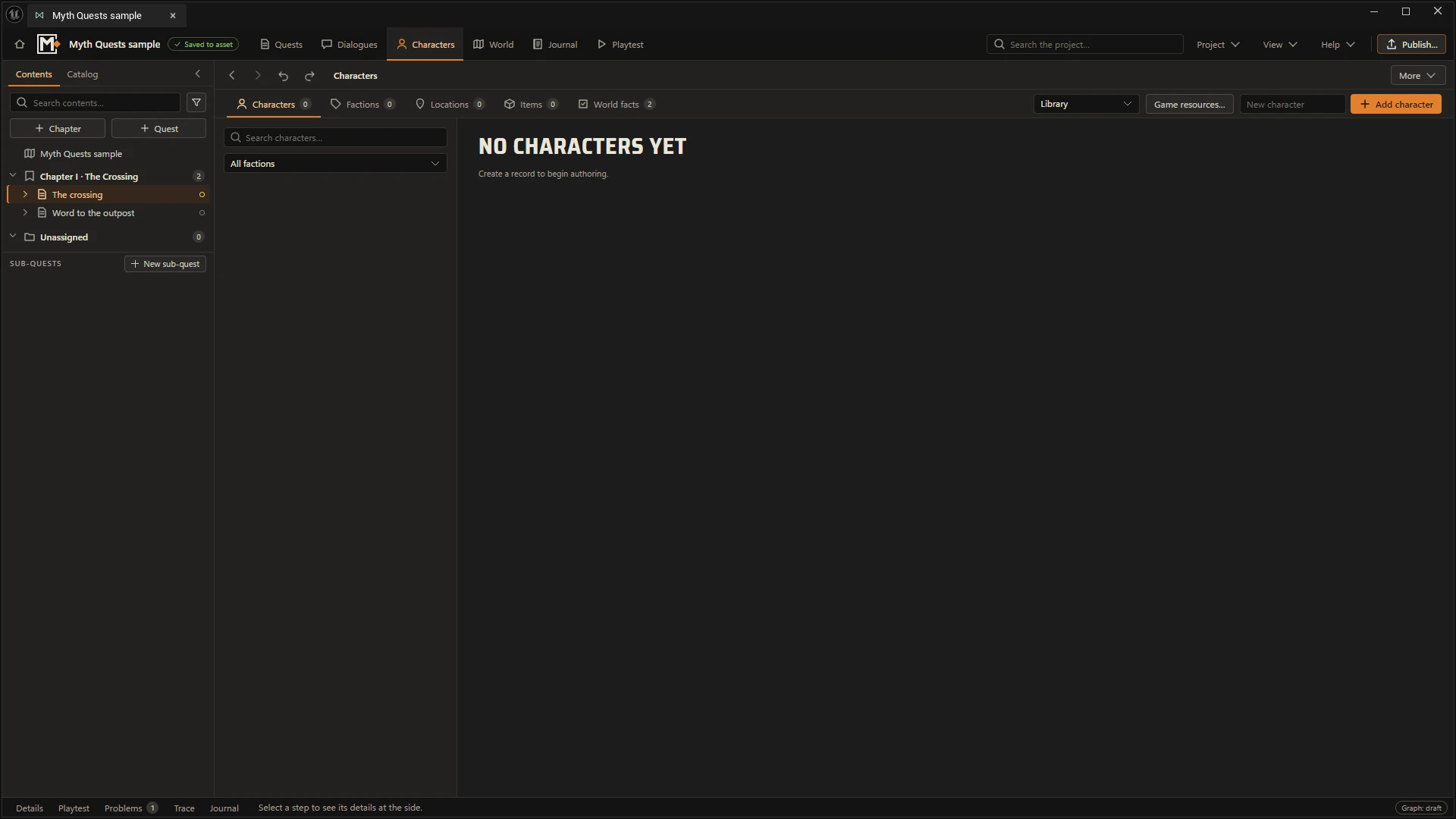
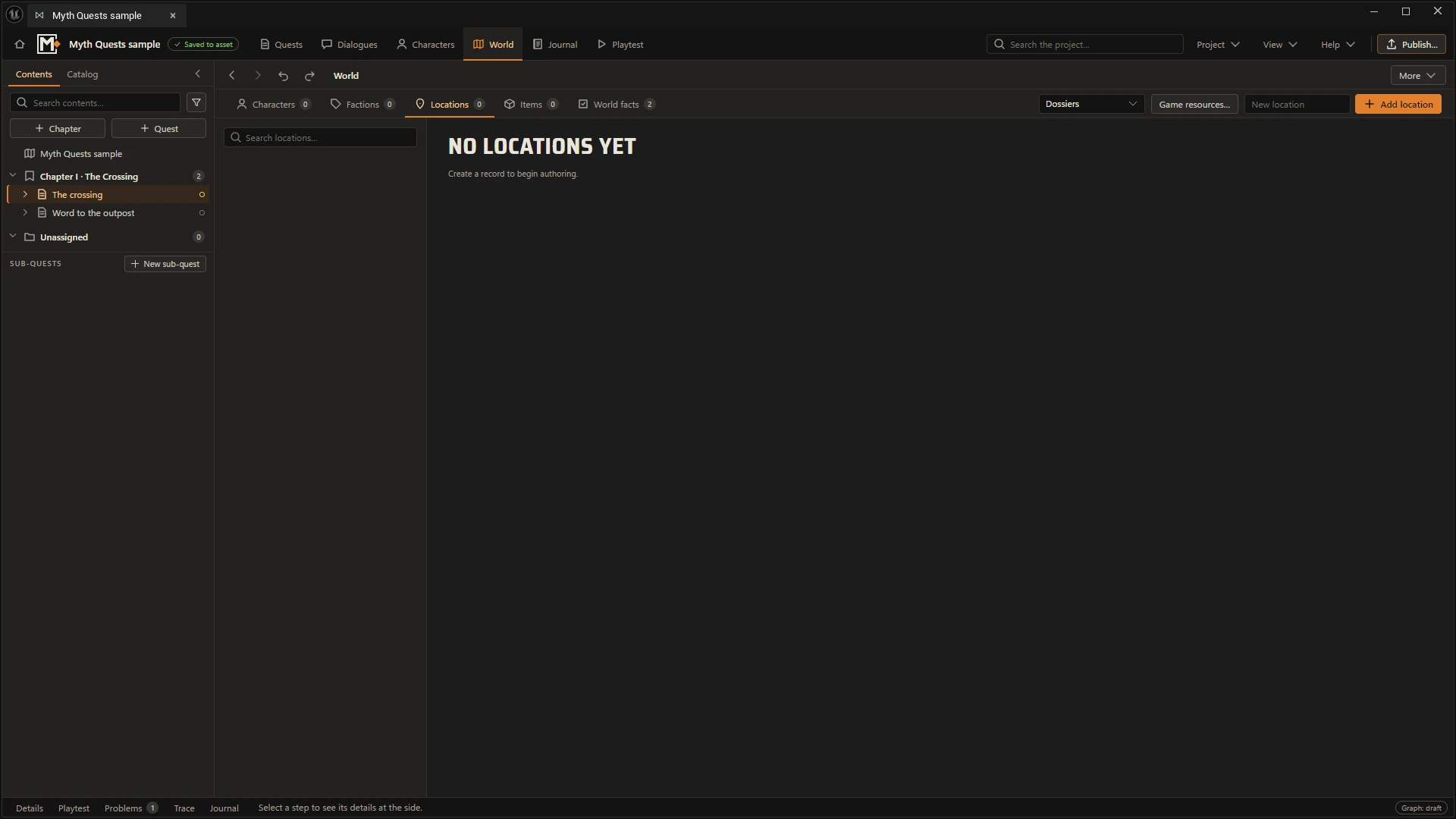
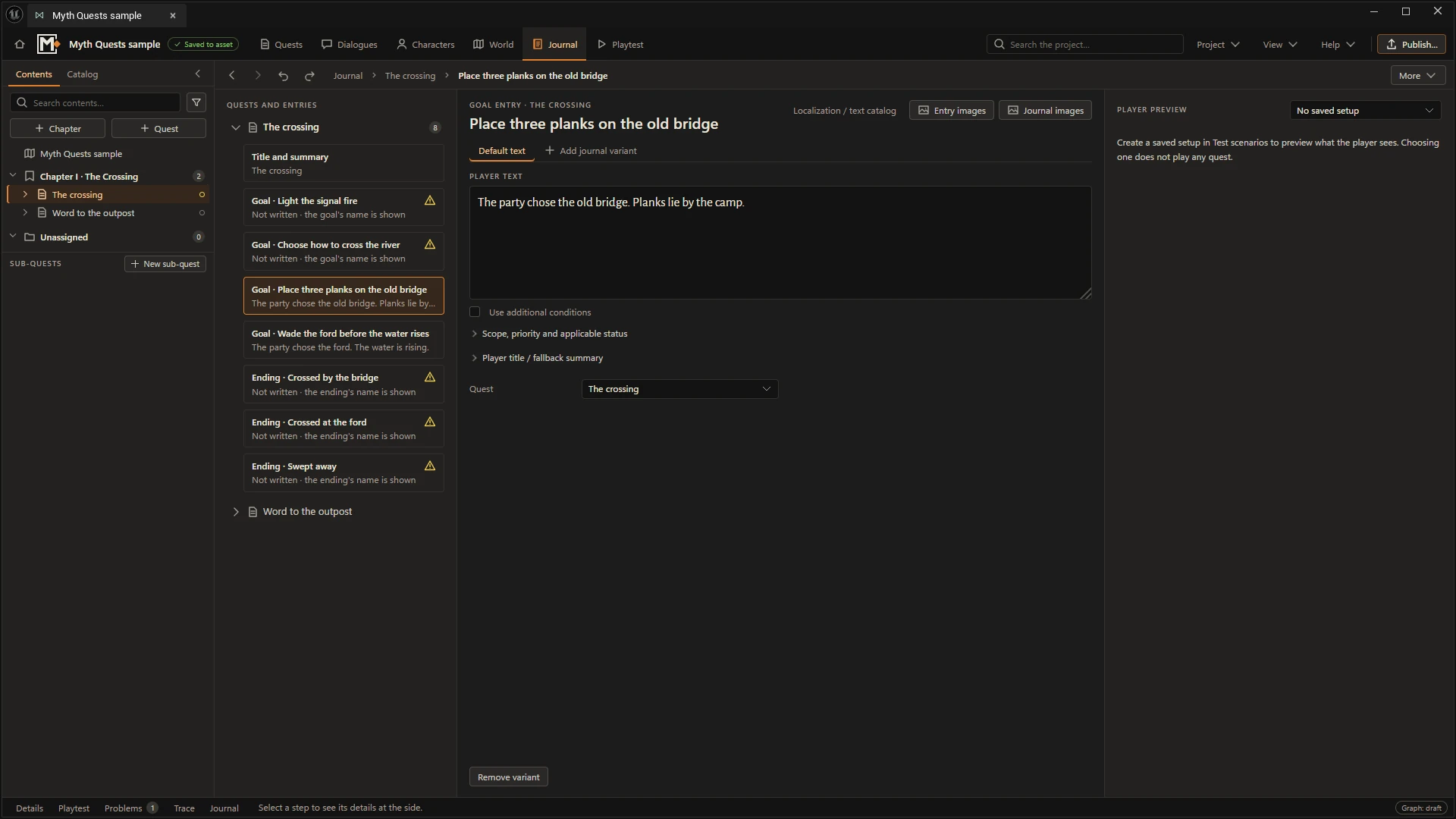
- The top bar. On the left the Home house, the project name and its state (Saved to asset, meaning everything is written into the asset). Then the workspaces: Quests, Dialogues, Characters, World, Journal, Playtest. On the right Search the project… across the whole project, the Project, View and Help menus, and the Publish… button (the same as Project → Export…).
- The left column: the Contents tab (a tree: project → chapters → quests, with Unassigned, the quests outside chapters, and Sub-quests apart) and the Catalog tab. The Search contents… field with the Filters button beside it, and under it the + Chapter and + Quest buttons; + New sub-quest is in the Sub-quests group. The « button collapses the column.
- The graph toolbar. Back/forward through the navigation history, undo/redo, the breadcrumbs (project › chapter › quest; click to jump anywhere), the Graph / Arcs switch, and for an open quest Add step, Check, Start playtest, Quest brief and More.
- The graph in the middle: step cards and the wires between them. Double-clicking a chapter (or selecting it and pressing Enter) opens its graph. In the graph's bottom-right corner sits the zoom: −, the percentage (click it for 100%), + and Fit (the same as in the More menu).
- The bottom bar with the Details, Playtest, Problems (with the number of problems), Trace and Journal panels, a hint for the current action and the graph state (Graph: draft, or Draft · N to fix when the quest has something to fix).
Properties of the selected step

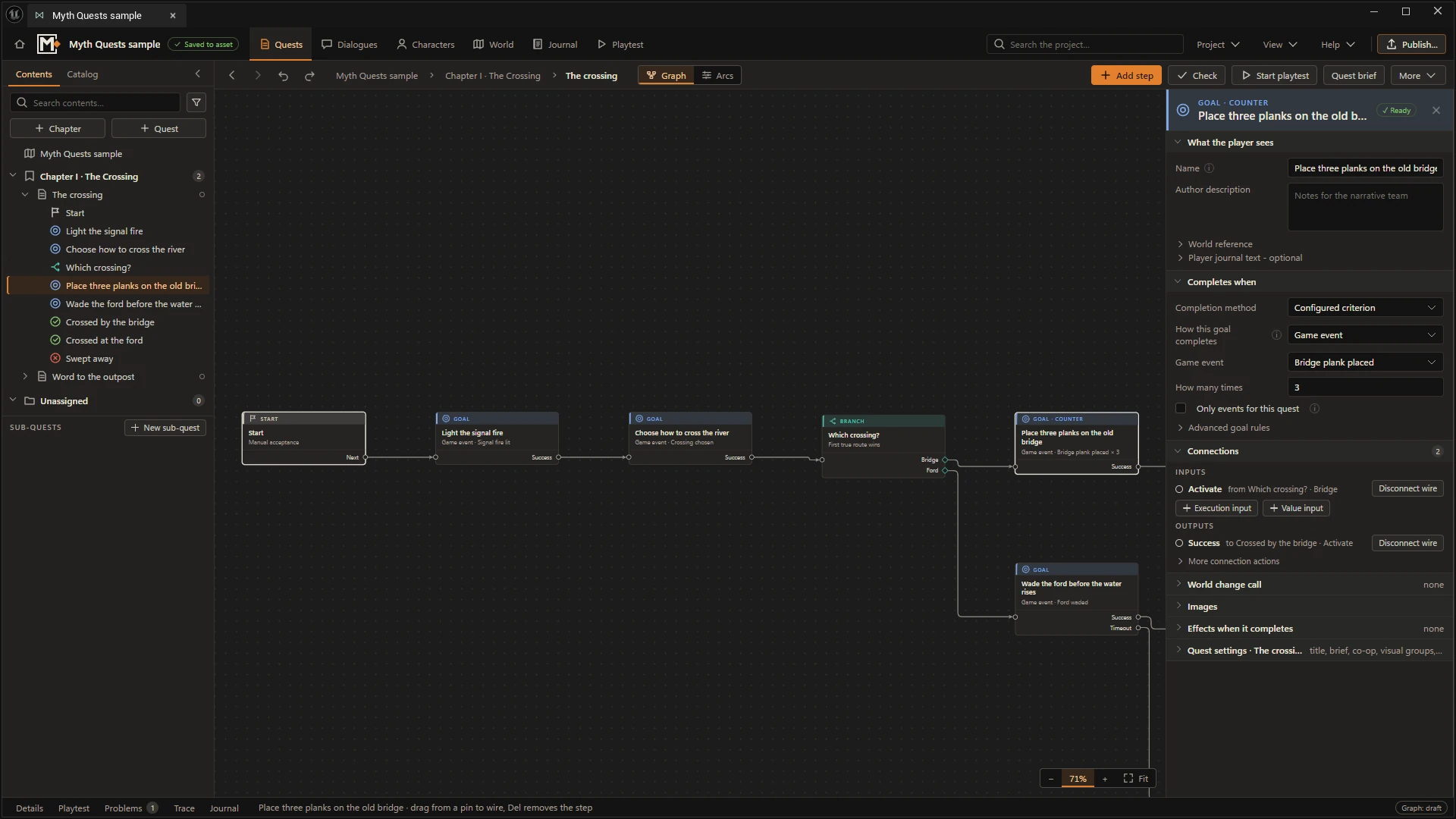
Clicking a step card opens its properties on the right; Close details closes the panel. The panel's header shows the step kind (Goal) above the step's name, and a Ready or Needs setup mark. Below it the properties sit in groups; for a goal step these are, from top to bottom:
- What the player sees: Name, the goal's name the player sees (fallback text; journal text is written separately), and Author description, notes for the team, never shown to the player.
- Completes when (on other step kinds the group is named for what they do: Starts when, Chooses a route and so on): Completion method and How this goal completes, what closes the goal; here Game event, that is, the goal waits for an event from the game. Game event: which event exactly (here Signal fire lit), and How many times: how many times (1). Only events for this quest: off, any such event counts, whichever quest the game sent it for; on, only events the game addressed to this quest.
- Connections: what enters and leaves the step; here the Activate input from Start · Next; Disconnect wire removes the wire. The other wire commands sit in the collapsed More connection actions row.
- Collapsed rows: World change call expands the game action the step calls; then Images, Effects when it completes and the quest settings (Quest settings).
Bottom panels and the check
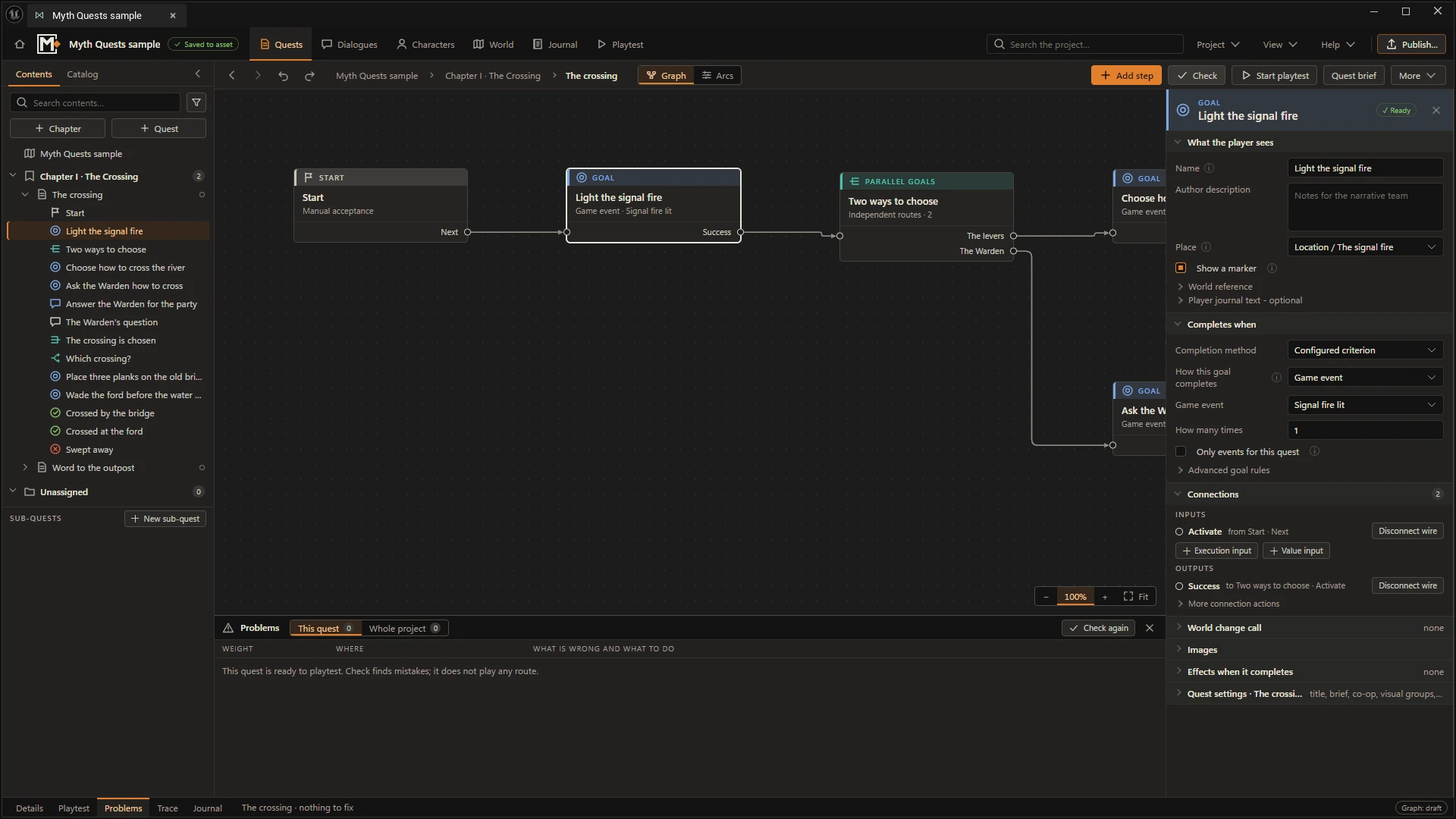
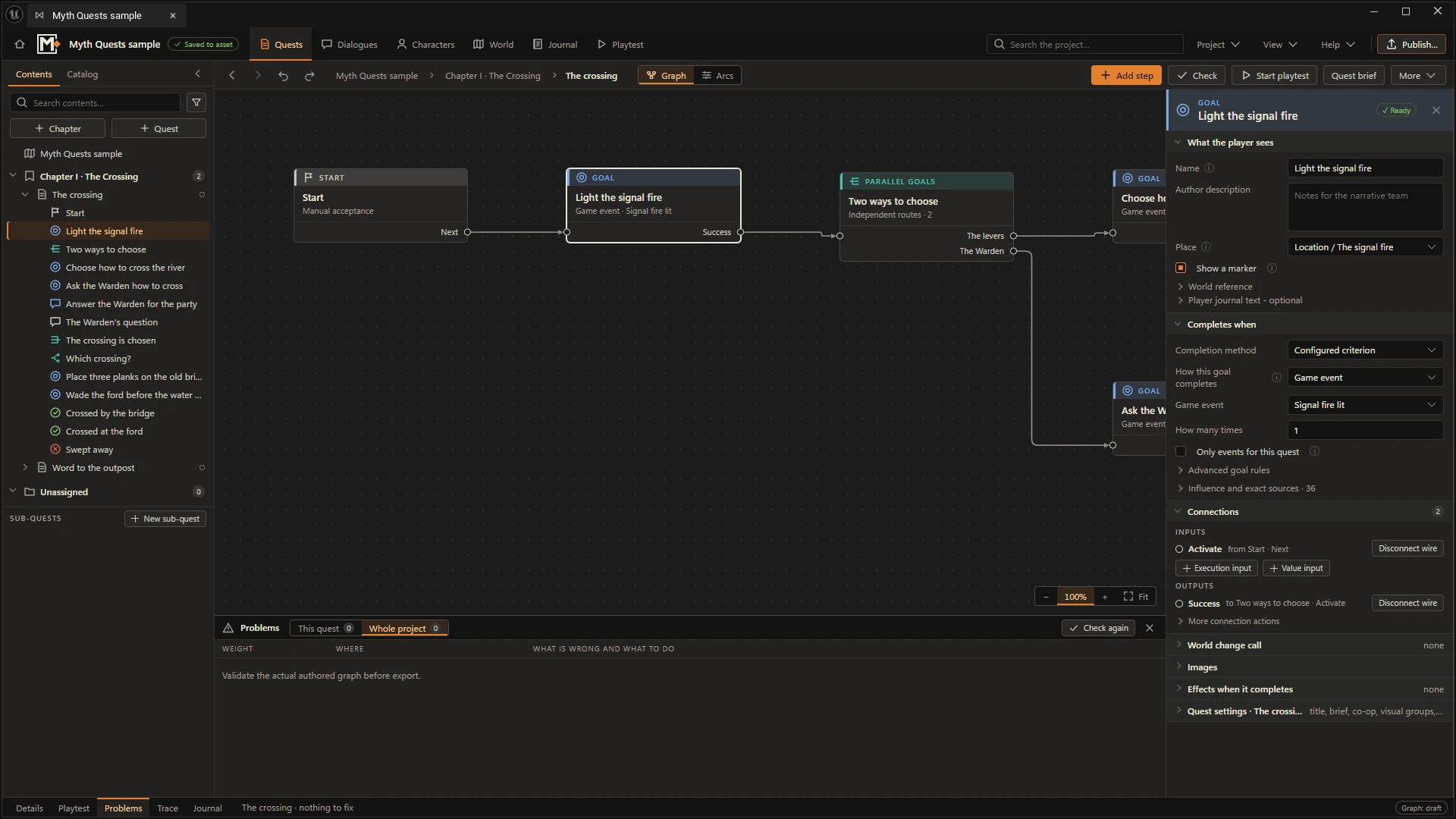
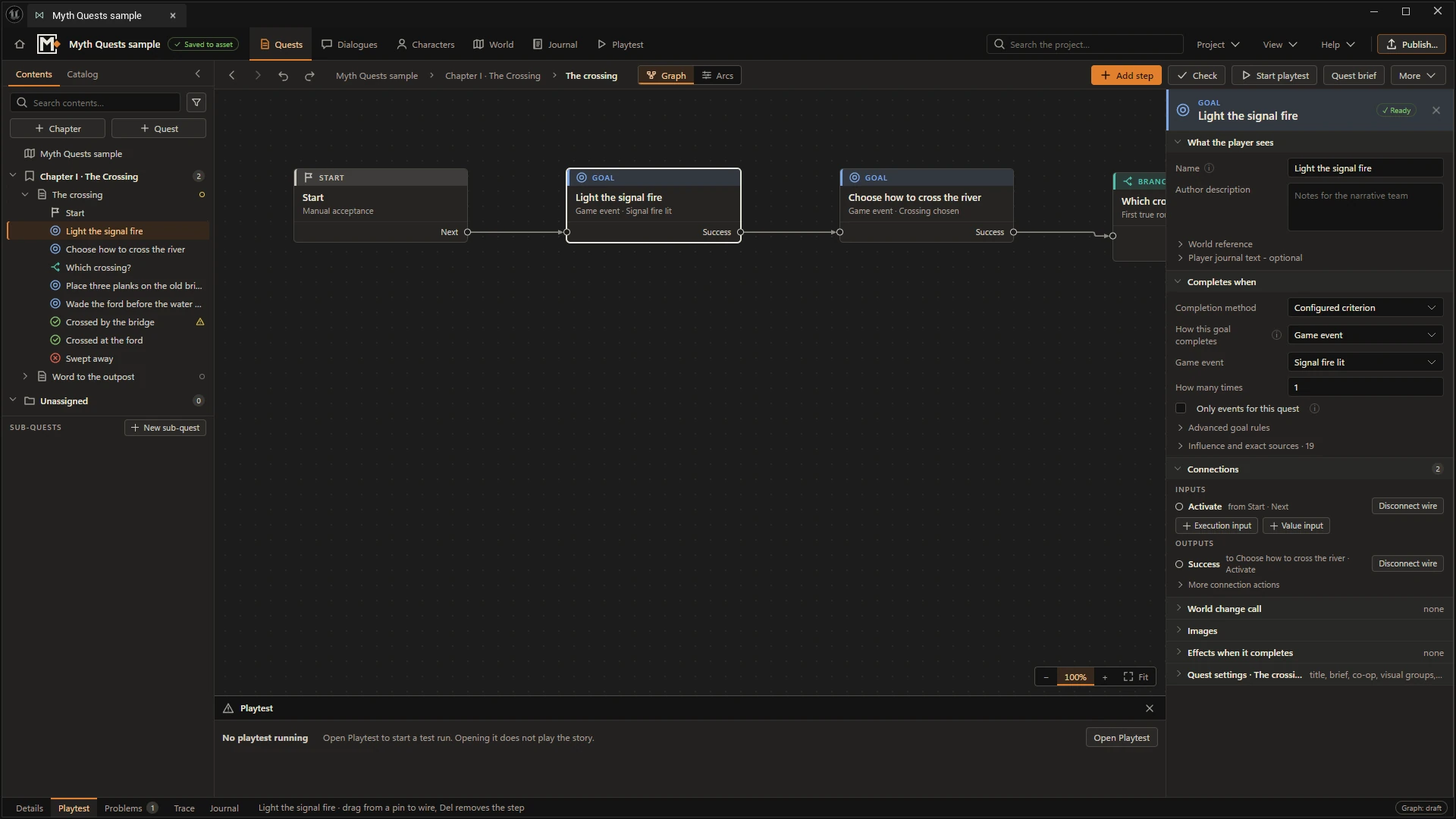
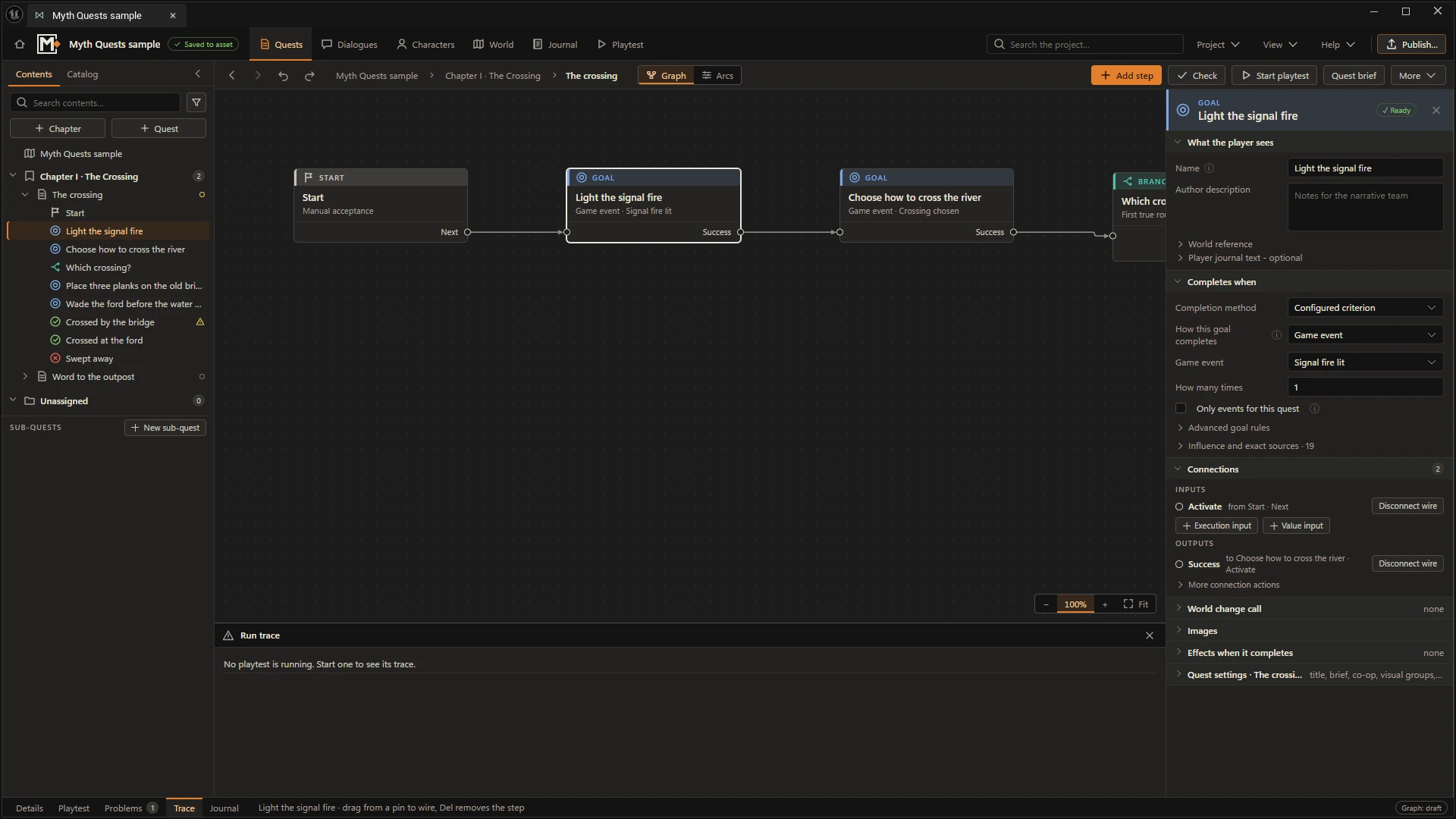
The quest check and the project's problems are one Problems table: the This quest / Whole project switch picks what it shows, Check again checks again, and Open source on a row takes you to the problem. Rows carry different weight: Blocks publishing (red) means the project will not publish with it; Needs setup (yellow) means the quest is still a draft and something is missing before publishing; a Notice (blue) is a hint that does not block publishing.
Top menus


The menu items sit under group headings; the table below lists them by menu.
| Menu | Item | What it does |
|---|---|---|
| Project | Project name | The project name shown in the window and on Home. |
| Save project file… | Save a portable copy of the project as a file (a backup, or to hand to someone else). | |
| Open project | Open another project. | |
| Recover previous project | Bring back the version of the project saved before the last write. | |
| New quest | A new quest. | |
| Authoring history, Apply pending Unreal edits | The edit history, and applying edits made to this project in other windows. | |
| About Myth Quests | The plugin version. | |
| Export… | Inside Unreal, opens the publish window: the project check and the Publish button (section Publishing). The Publish… button on the top bar does the same. | |
| Review…, Production…, Game resources…, Quest costs…, Add two-choice starter quest… | The "Review and production" group: a project overview, production screens, the game's resources, quest estimates, and a ready starter quest with a choice between two options. | |
| View | Facts, Files, Reference board, Scenarios, Templates | Project screens: all facts, files and pictures, a reference board, test scenarios, templates. |
| Project search, Localization, Compare saved versions | Search, translations, comparing saved versions. | |
| New window | A second editor window on the same project (see Several windows). | |
| Background scope, Background / images…, Workspace preferences… | The workspace background and its settings. | |
| Help | Guide / glossary… | The built-in guide, worked techniques and a glossary of terms. |
| Terms for current task | The terms that apply to what you are doing right now. | |
| Diagnostics / host status, Native diagnostics / source tools… | Internal diagnostics (needed when you contact support). | |
| More (on the graph toolbar) | Steps: Add, Edit. This graph: Go to start, Validate, Auto-layout…, Game actions and events…, Game integration sheet…, Reactions…, Radio channels… and more. View: Fit graph, 100%, Frame selection, Navigator, Inspector, Focus | Adding and editing steps; the graph's commands (check, auto layout, game actions and events, the integration sheet, reactions, radio channels); fit and 100% zoom (also in the graph's corner), frame the selection, show or hide the left column and the properties panel, focus mode. |
Workspaces
The buttons on the top bar switch what the middle of the window shows. The project stays the same.

Several windows
You can keep up to five editor windows open at once, for example to work in one quest and see the changes in another straight away. A new window opens as a tab beside the one it was called from:
- View → New window: a second window on the same project;
- Open in new window on Home: the project in a new window beside this one.
How the windows live together:
- an edit in one window appears in the others by itself, with no reload;
- the undo history is shared: Ctrl+Z in any window undoes the last edit, wherever it was made;
- if the same field was edited in two windows, the last edit wins, and the other window shows a notice line;
- choosing another project on Home replaces the project in this window; to open it alongside, use Open in new window.

The number of windows allowed is set by Maximum editor windows (1–5) in Editor Preferences → Plugins → Myth Quests. Each window is a separate embedded browser with its own copy of the project, so on a large campaign fewer windows save memory.
4Your first quest
Let's build a simple quest, "Find the lost scout": the player takes the quest, completes one goal, and the quest ends. Then we test it right in the editor, without running the game.
Create a quest
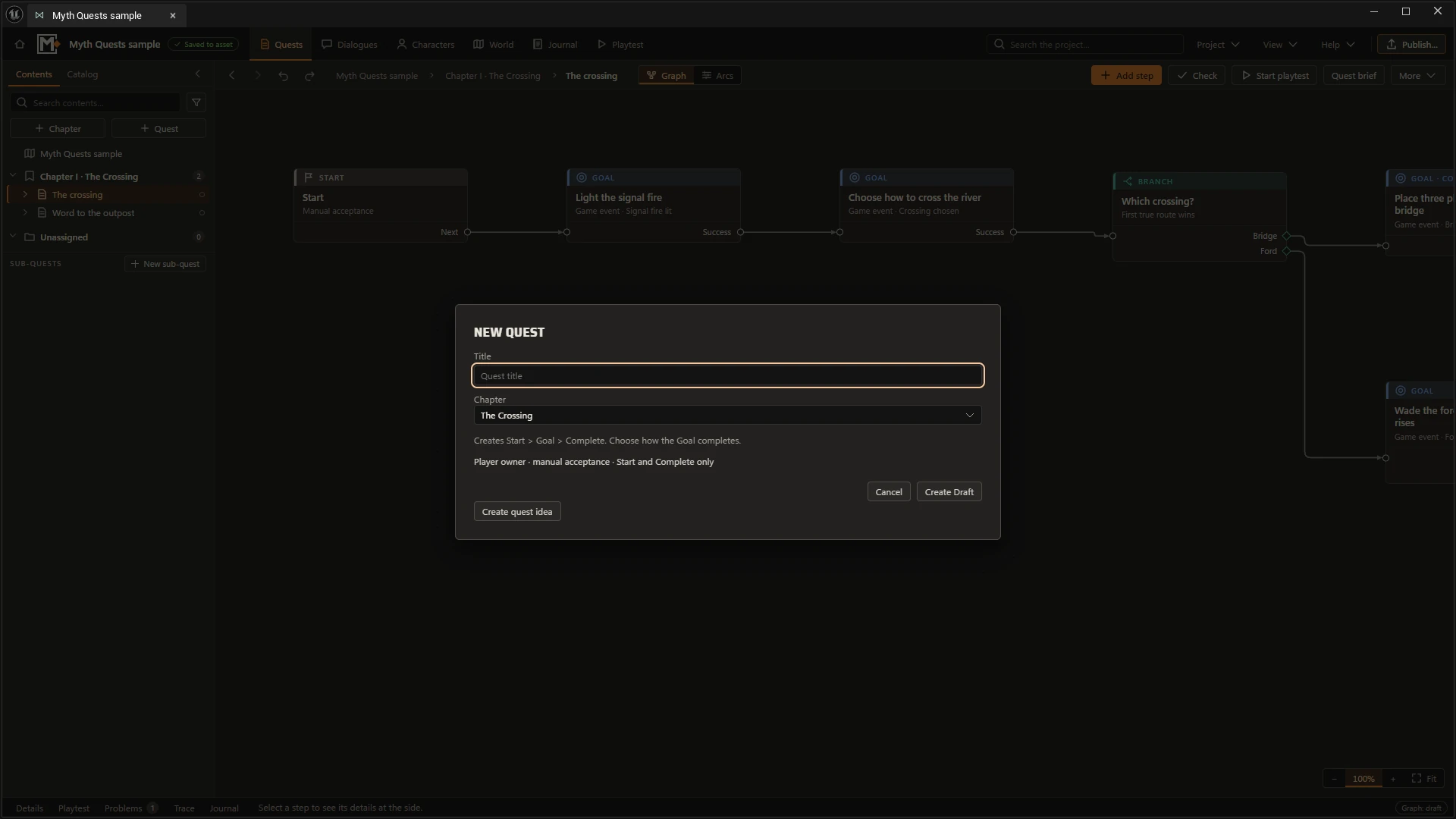
- In the left column press + Quest (or Project → New quest).
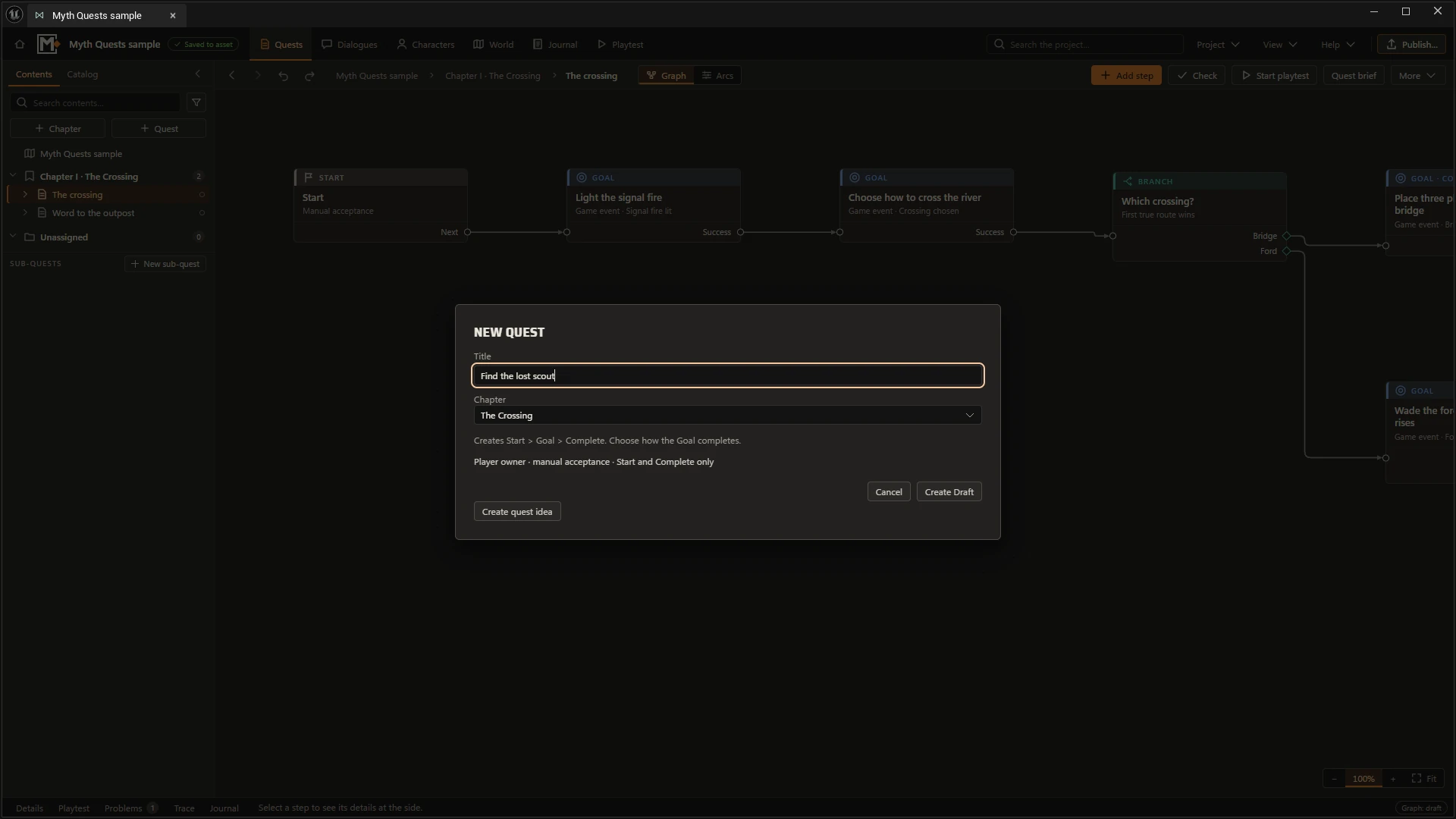
Expected: the New quest window with the Title and Chapter fields. - Type a title, pick a chapter and press Create Draft. The note in the window says what will be created: Start › Goal › Complete, a start, one goal and a successful ending; the owner is the player, with manual acceptance. Create quest idea instead adds a placeholder quest with no graph.
- Expected: the quest appears in the tree under the chapter, a graph of three cards is in the middle, and the goal's properties panel (Goal above the step's name in its header) is open on the right with the name Describe the player task selected.

Set up the goal
- In the goal's properties panel, in the What the player sees group, set Name, the goal text for the player ("Find the scout by the old tower").
- In the Completes when group: How this goal completes, what closes the goal. For a first quest choose Game event.
- Game event: which event to wait for. An event is declared once per project (More → This graph → Game actions and events…, see Events) and is then picked from a list. How many times: how many times it must arrive.
- Expected: the Needs setup label on the card is gone, and under it you see
Game event · the event name.
If it stays: no event is chosen, or the goal has no count.
Add steps
Add step on the graph toolbar opens the Add a step menu with every step type (details in Steps, goals and branches):

The new card is placed in the graph; wires run from an output of one card (the circle on the right, for example Success) to an input of another (the circle on the left; a card's single input carries no label, and the properties panel calls it Activate). To remove a wire, use Disconnect wire in the properties panel.
Quest settings

The quest settings (category, title, chapter, co-op, timings, availability, repeat) open from any of its cards. Details are in Arenas, repeatable and co-op quests.
Playtest
Start playtest on the graph toolbar plays the quest in the editor: the Playtest panel opens at the bottom, showing which step the quest is at and which goals are active, and you can "send" the event a goal is waiting for without running the game.

Readiness check. Check on the graph toolbar checks the quest. While it is a draft, the check lists what is missing; a quest with errors will not publish (see Publishing).
5Steps, goals and branches
A quest is a graph of step cards. Each step has inputs (on the left) and outputs (on the right); a wire passes control from an output to an input. Below are all the step types, with examples from the bundled projects.
| Step (in the Add step list) | What it does |
|---|---|
| Start | The start of the quest. How the quest is taken: by hand (Manual acceptance, the game calls Start Quest) or automatically on a condition. |
| Goal | A player goal. Closed by a game event, a condition or a dialogue outcome; it can count. |
| Condition / branch | A branch: picks the first output whose condition is true (by priority); there is a fallback output. |
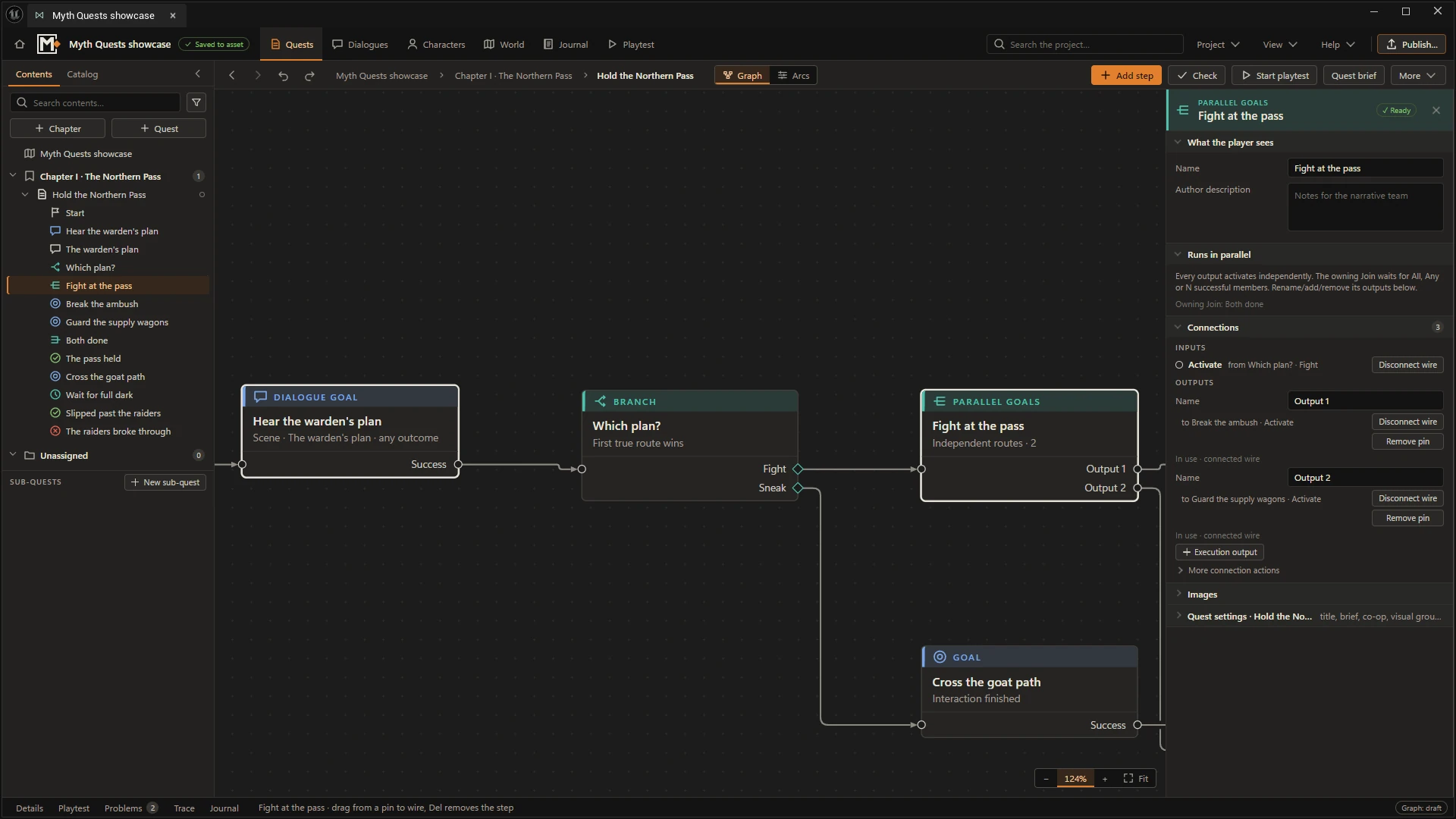
| Parallel goals | Starts several branches at once. |
| Join parallel goals | Waits for the parallel branches: all (All), any (Any) or N. |
| Merge a chosen branch | Brings the branches of a branch step back into one. |
| Wait | A pause of a set time. |
| Effects | Changes facts (and waits for nothing). |
| Action | A game action: a command to the game, with parameters. |
| Call sub-quest | Starts a sub-quest and waits for its outcome. |
| Subquest from selection / Empty subquest | Gathers the selected steps into a sub-quest (or adds an empty one). While nothing is selected, the first entry shows dimmed with the reason. |
| Player choice | A player choice is made in a dialogue scene. |
| Complete / Fail | A successful or a failed ending. An ending carries the rewards and a journal line. |
Goals

What closes a goal (How this goal completes):
- Game event: an event from the game (Send Quest Event). How many times: how many events are needed. A goal can count the number an event carries ("collected 3 scraps" in one event): each event adds its number, rounded down; a number below 1 adds nothing.
- Condition: the goal closes the moment the condition is true (facts the game writes, item counts, the results of other quests).
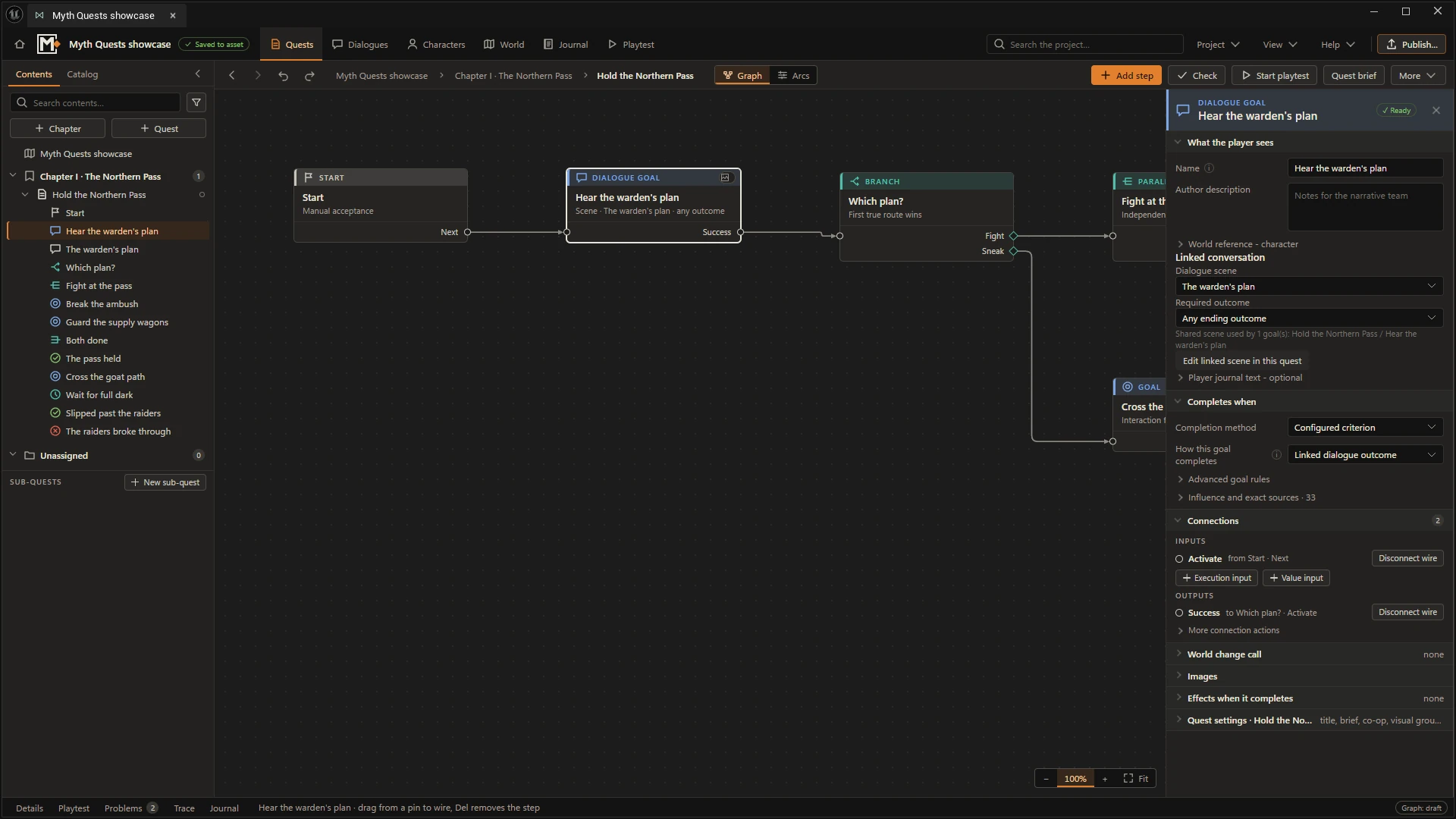
- Dialogue outcome: the goal waits for how a dialogue scene ends.
- Only events for this quest: count only events the game addressed to this quest.
Branches

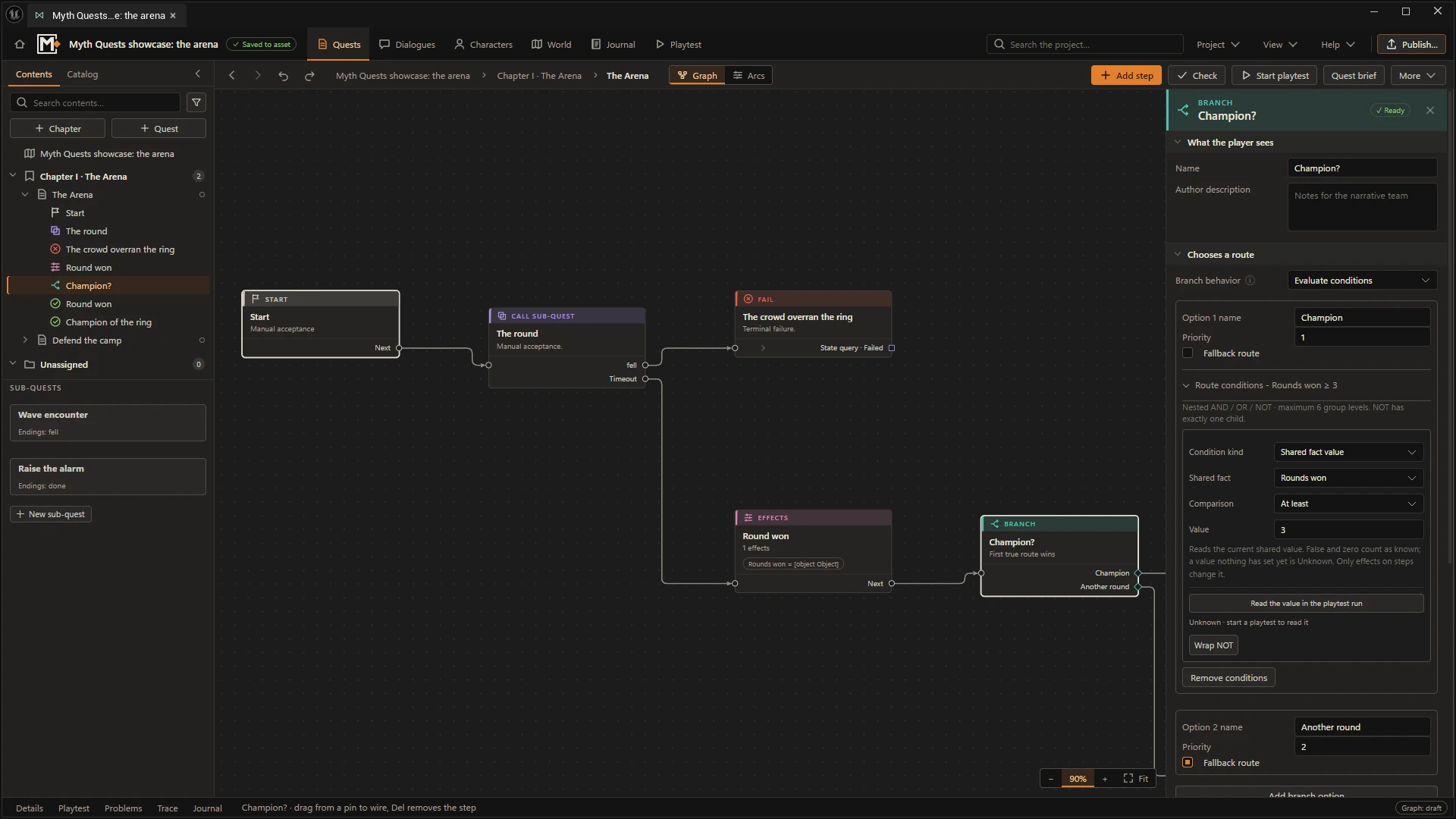
The branch rule: the first output with a true condition is chosen, by priority; the output with the Fallback route checkbox is taken when none fits. Conditions are built from AND / OR / NOT groups (up to 6 levels of nesting). Condition kinds (Condition kind): a fact, a quest state, a dialogue outcome, a game condition and others.
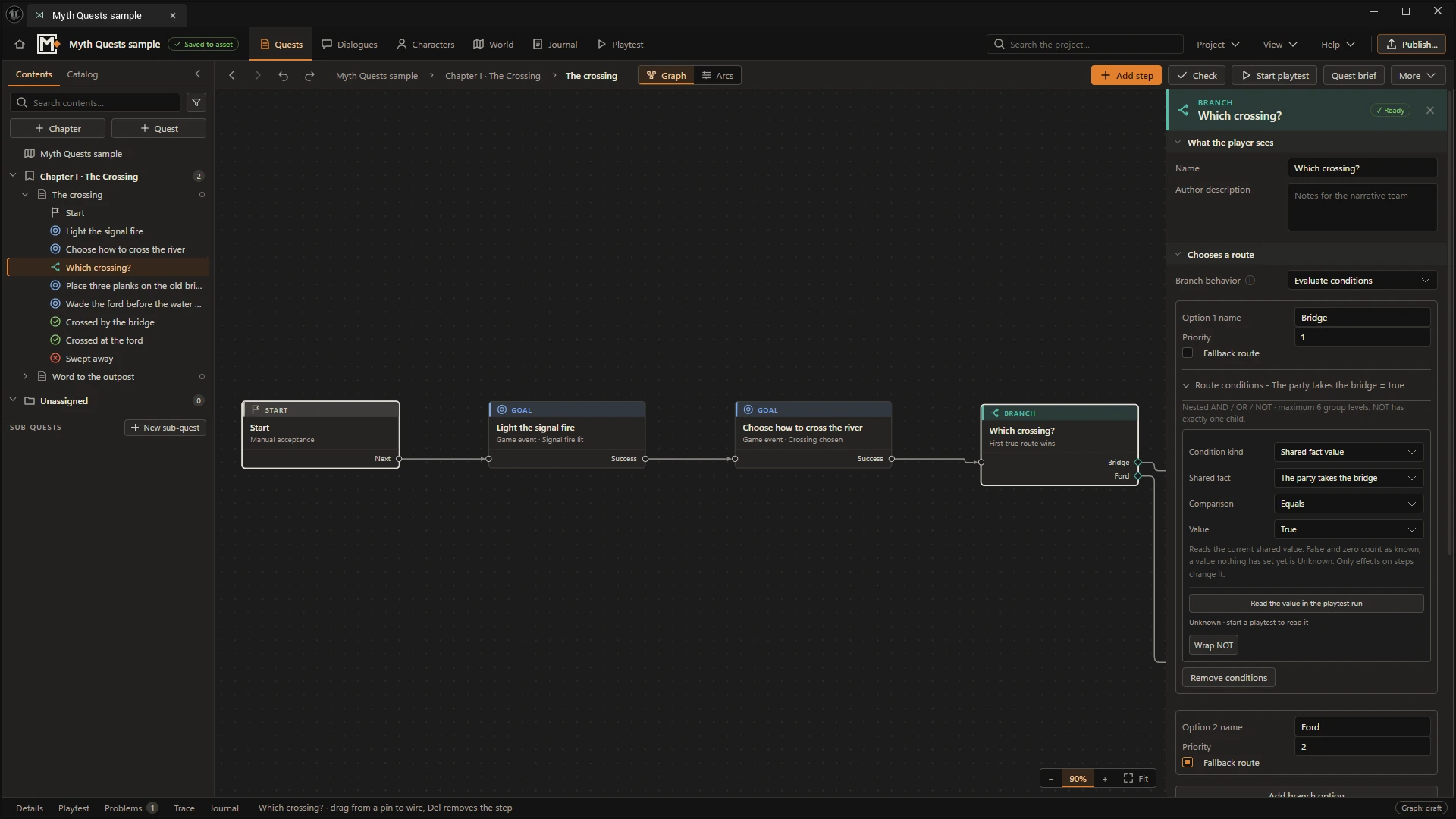
Parallel goals
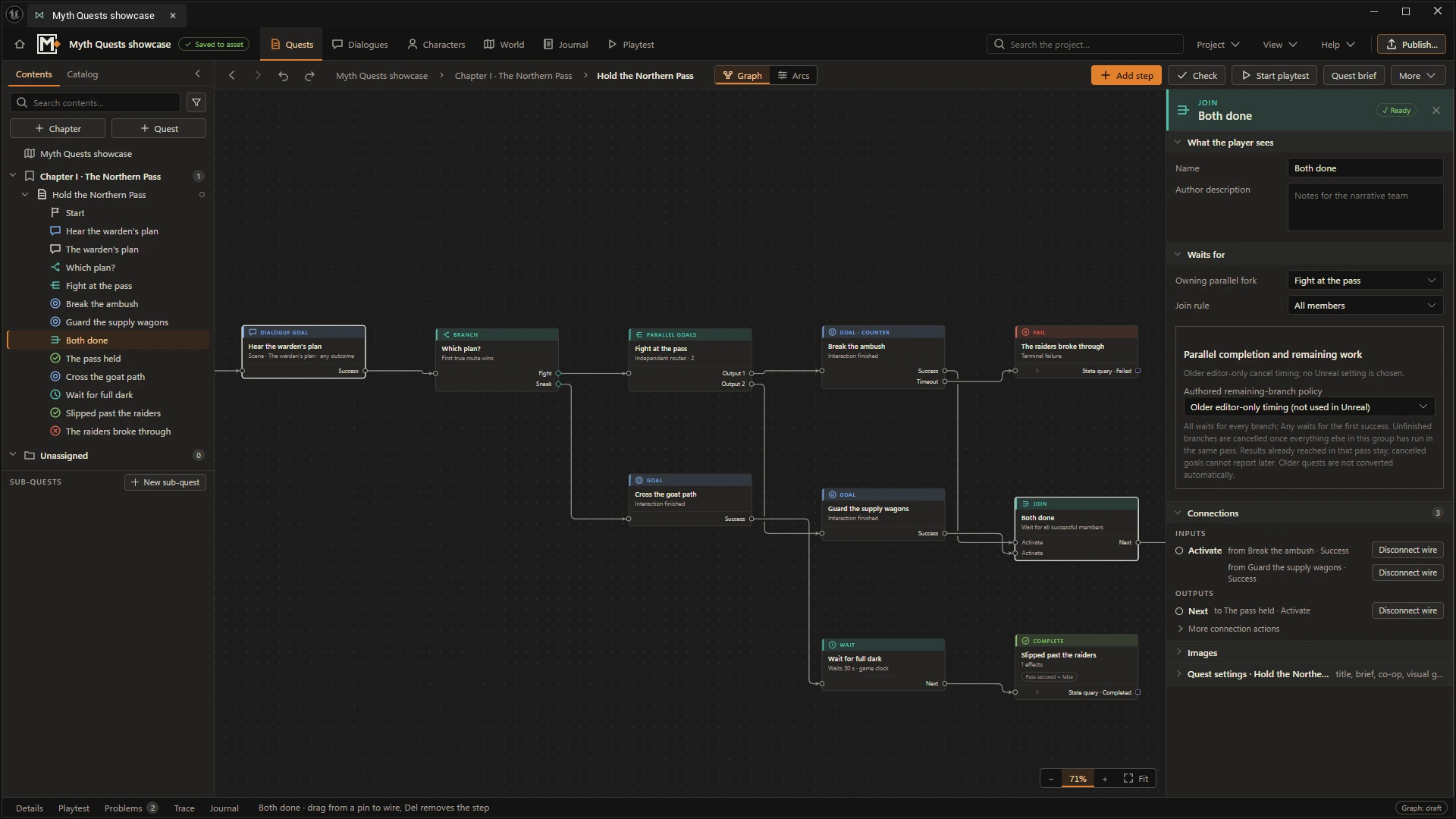
Wait and effects
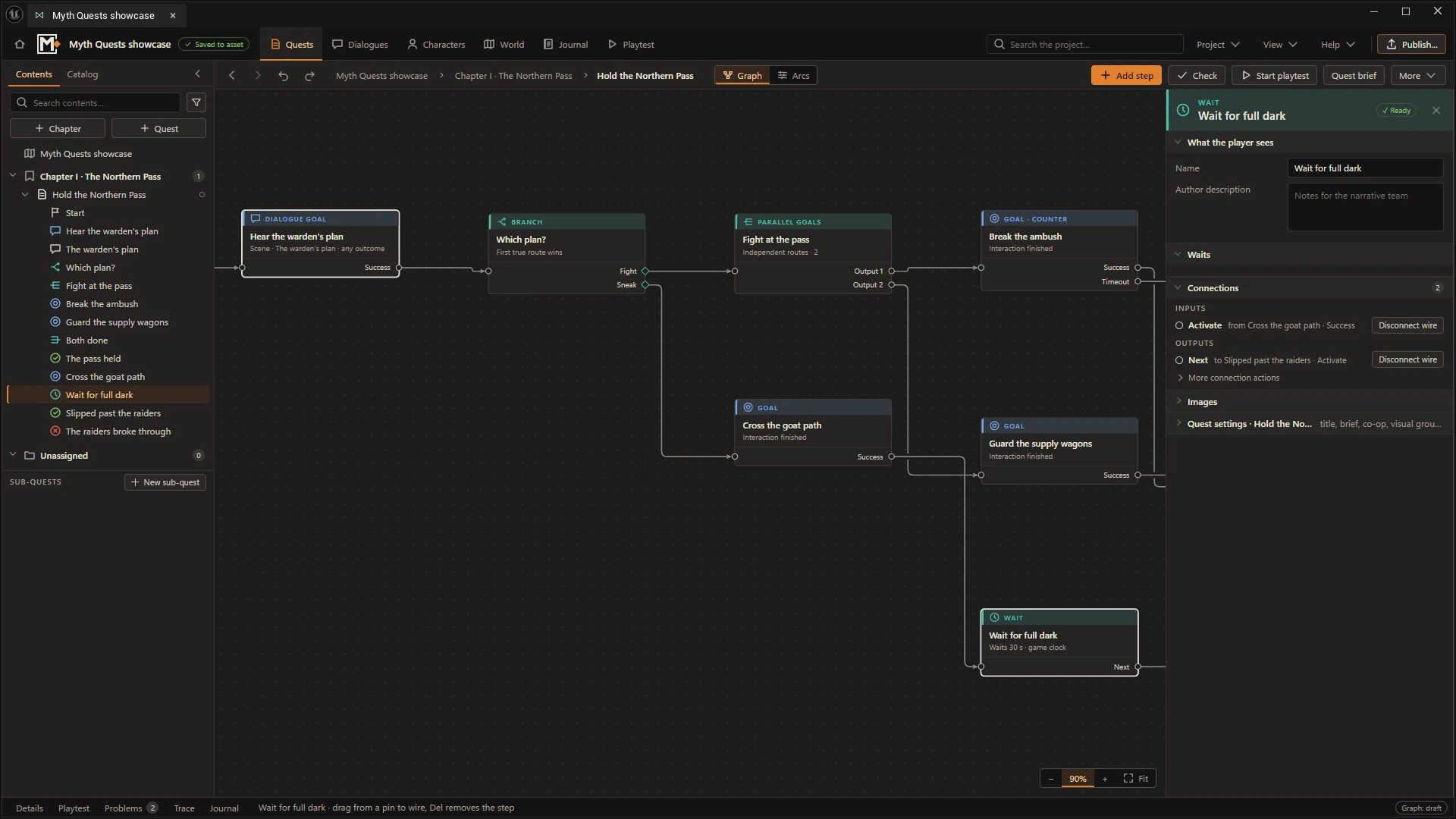
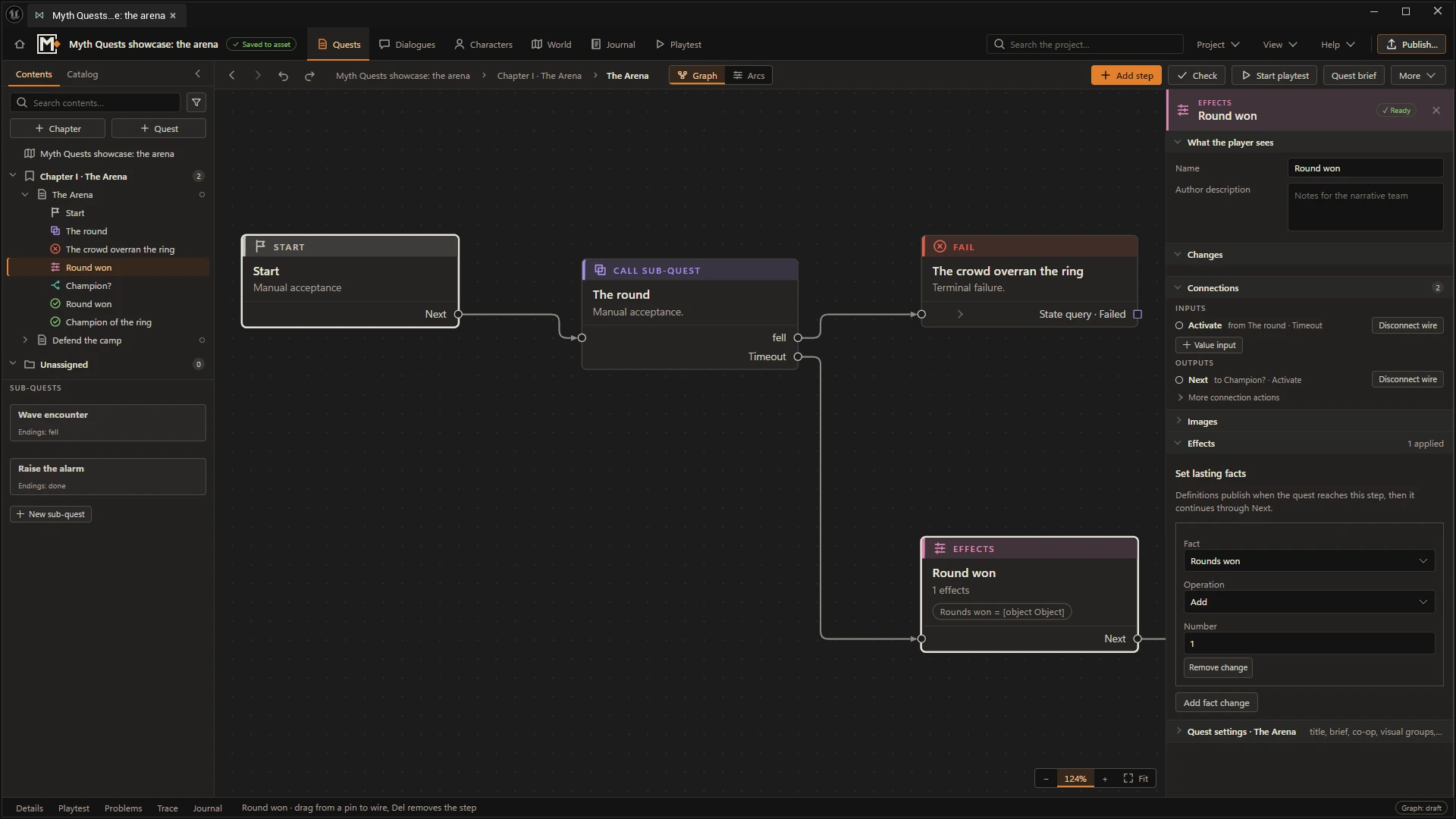
Endings
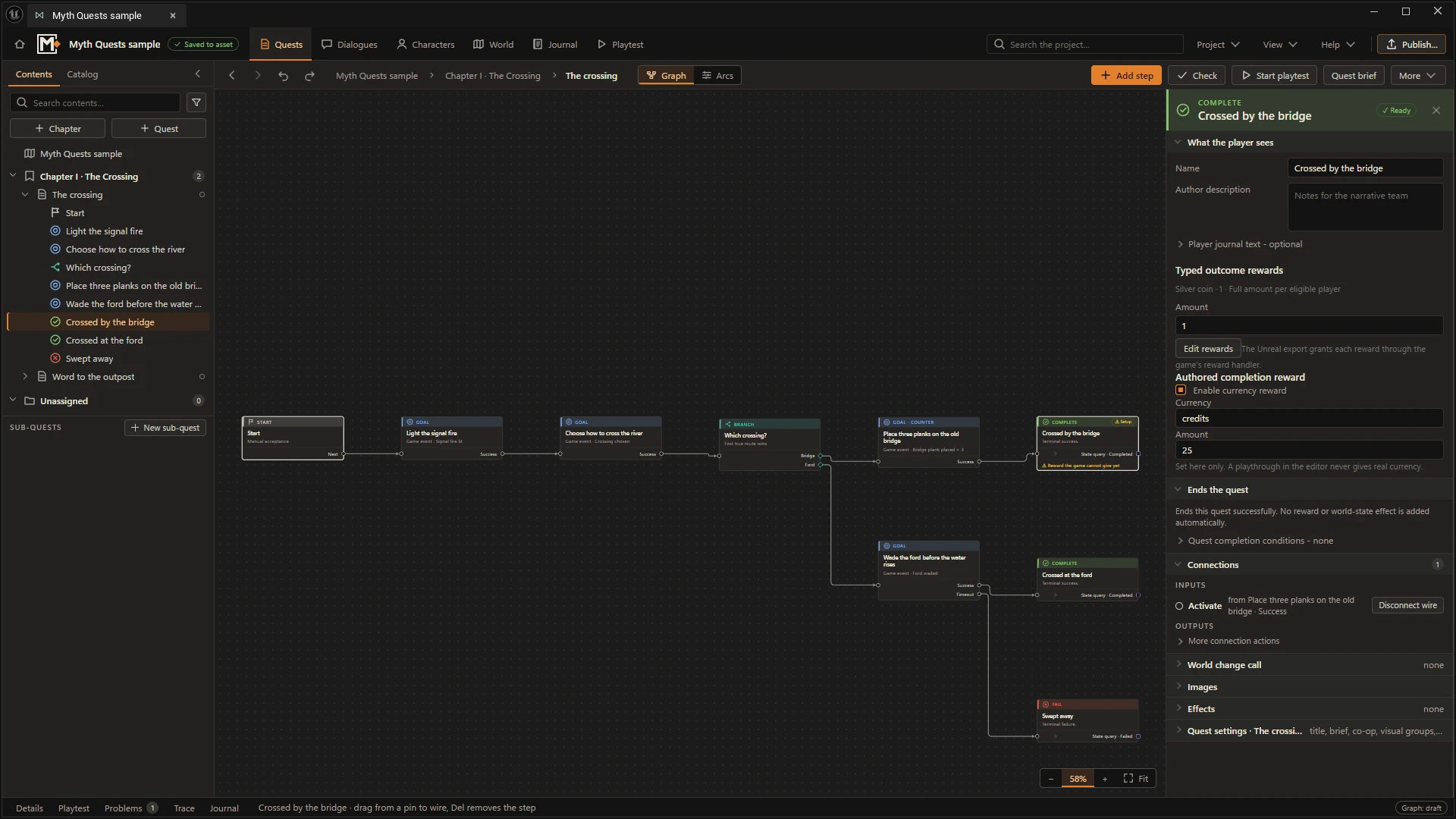
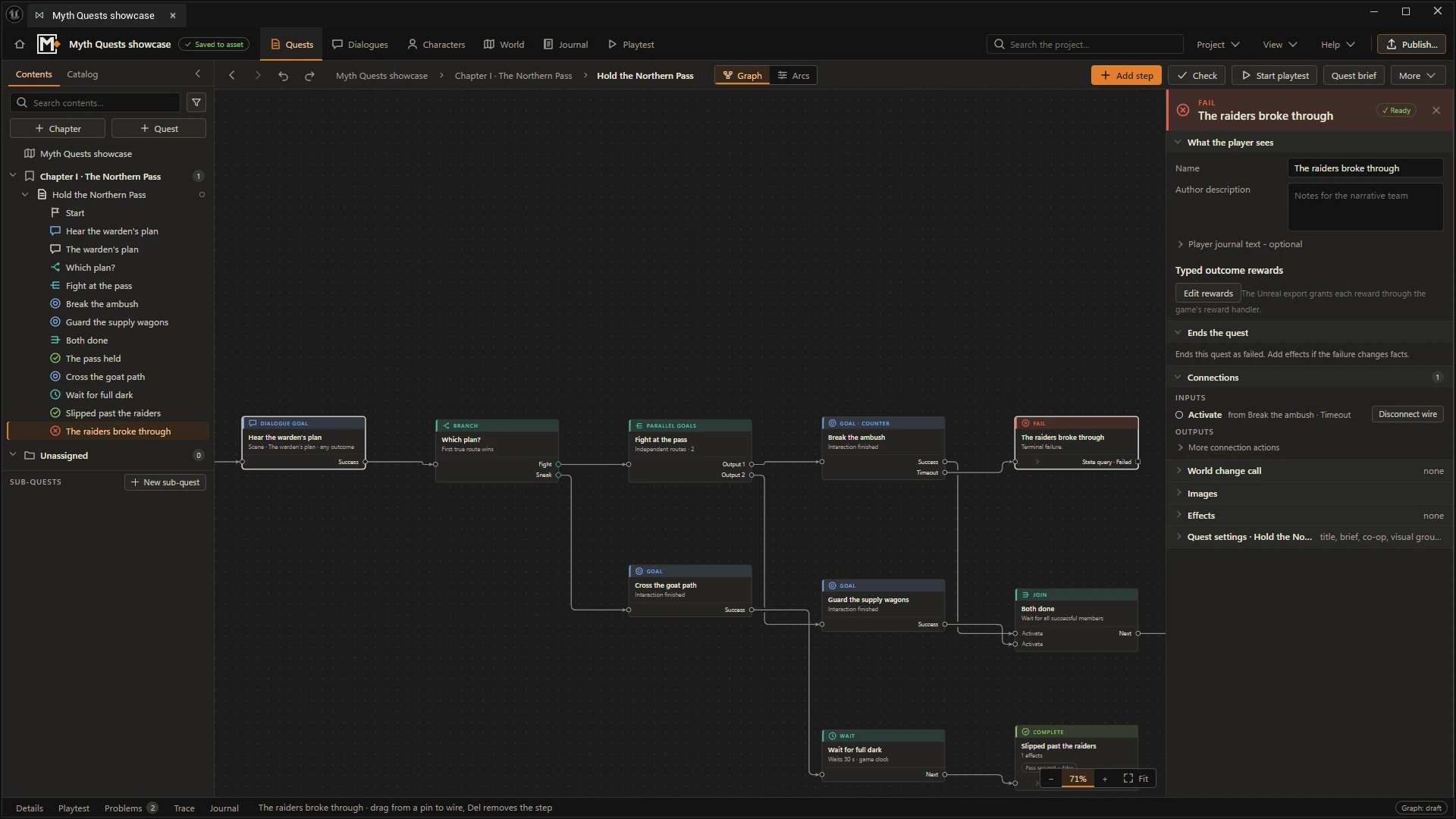
A quest can have any number of endings. The game learns which one it ended with through Get Quest Outcome, the On Quest Completed / On Quest Failed event with the ending key, or the Switch on Quest Outcome node.
6Facts, conditions and events
Events
An event is a signal from the game: "lit the fire", "killed an enemy", "reached the outpost". The project's list of events is in More → This graph → Game actions and events…: a window with the Events, Actions, Rewards and Conditions tabs, the list of records on the left and the chosen one on the right.

Quest.Event.SignalFireLit).- Sent by: The server: the server sends the event (Send Quest Event). Use it for everything a client cannot be trusted with (counters, rewards).
- Sent by: A client request: a client may send it itself (Request Quest Event on the player component). Other events from a client are refused.
Facts
A fact is a value the world remembers: yes/no or a number. A fact's scope is the player, the party or the world. Quests write facts with an Effects step and read them in conditions; the game writes them with Set Fact Bool / Set Fact Number / Change Fact Number / Clear Fact and reads them with Get Fact …. An unknown fact is neither "no" nor 0: check the Known output.

Chapter facts. When chapters are linked (one opens after an ending of another), the export
adds a party fact Chapter_<chapter key>_<ending key>. The game can read it ("has the second
act opened?") but cannot write it: the quests own it.
Conditions and game conditions
A condition is an expression over facts, quest states, dialogue outcomes and game conditions. A game condition is something only the game knows (weather, time of day): the designer declares it by key, the game answers through the Myth Quest Condition Provider interface (the Evaluate Quest Condition function: True, False or Unknown) and reports a change by calling Notify Quest Condition Changed.
7Dialogue and characters
Characters and the world
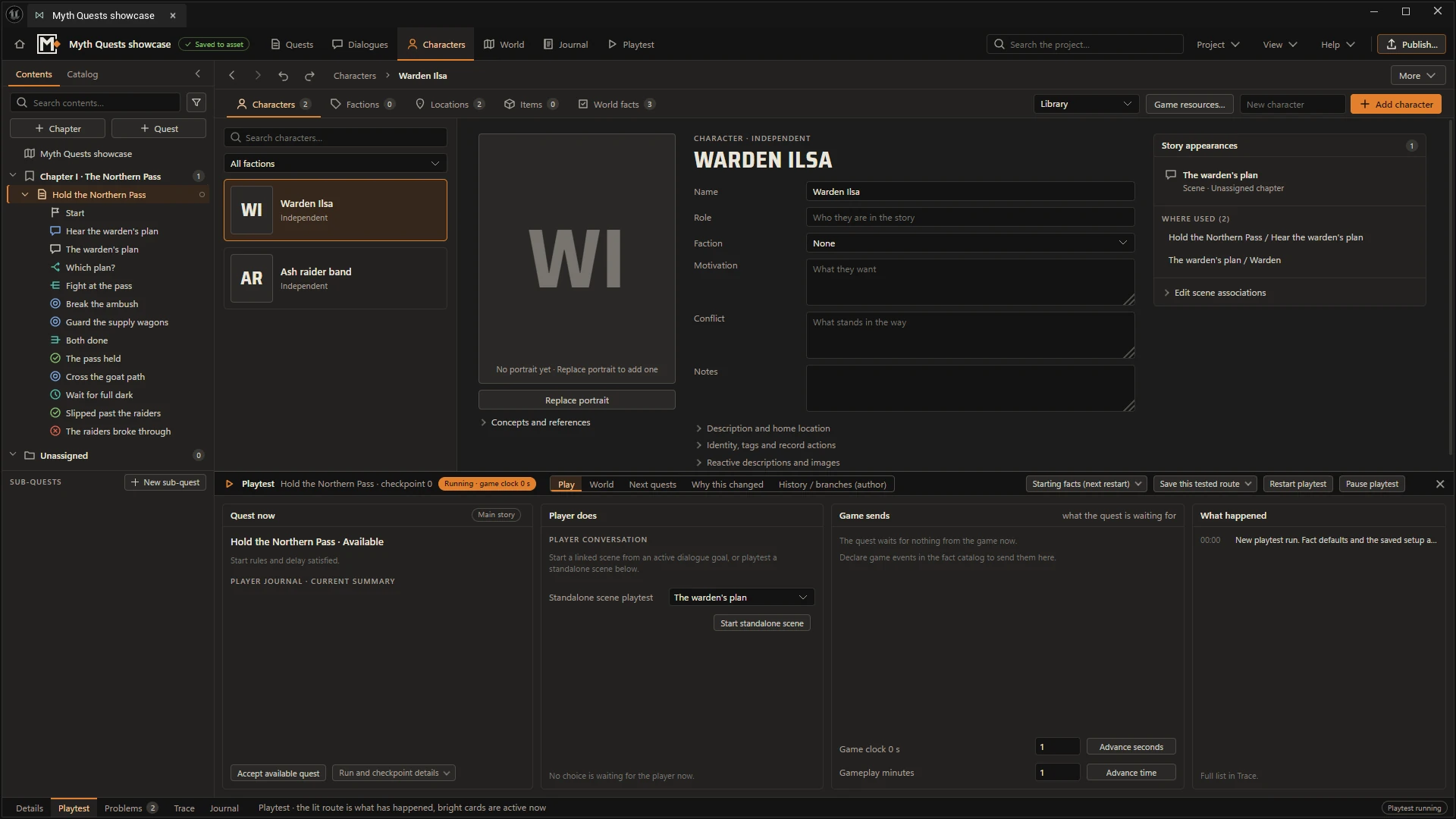
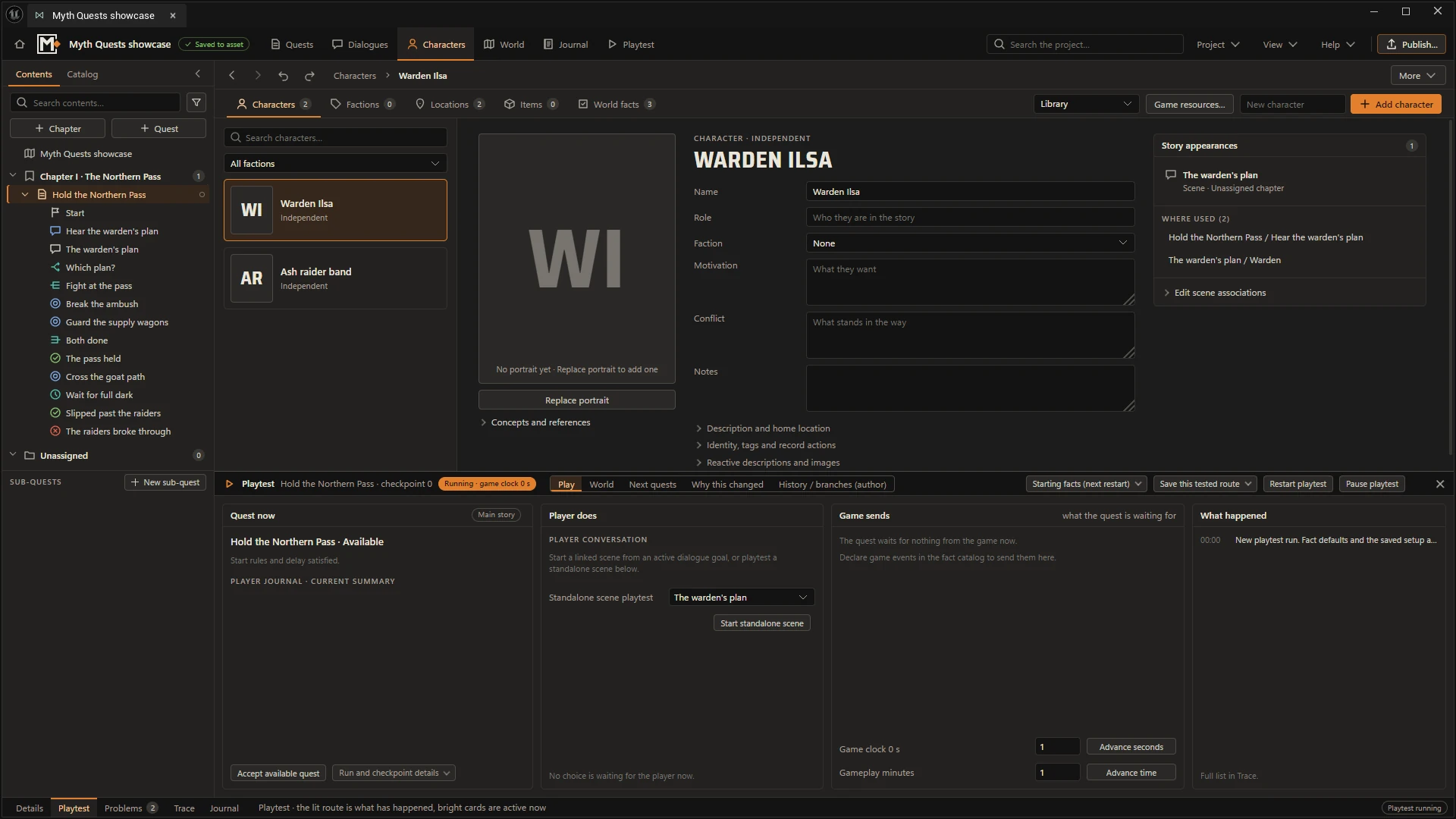
World records (characters, factions, locations, items) are World records: goals refer to them ("kill the wolf pack leader"), and so do events (Record) and game action parameters (Get Action Entity).
Dialogue scenes

A scene's outcome (Outcome) is read by goals ("Hear the warden's plan" closes on any outcome) and branches ("Which plan?" picks a branch by the outcome). In the game a scene is driven by Begin Scene, Get Active Scene, Advance Scene, Choose Answer and the On Scene Changed event; see Blueprint: dialogue. An answer the author marked "show as unavailable" arrives with Available = false and an Unmet list of the conditions that are missing.
8Journal, rewards, game actions
The journal

Every quest has a title and a short summary for the journal, and every goal and ending has its own line. A line variant can depend on a condition (Add journal variant, Use additional conditions). In the game, the journal is drawn by your widget based on Myth Quest Journal Widget: the Present Journal event arrives on every change.
Rewards
Rewards are set on endings. What a reward is (an item, currency, experience) is the game's decision: the plugin passes the key, the GameplayTag, the amount and the title to Grant Quest Reward of the Myth Quest Reward Handler interface. A reward line with a chance below 100% is rolled once, on the server; a miss calls On Reward Not Awarded on the recipient. Who gets the reward is decided by the quest's co-op rule.
Game actions
An Action step asks the game to do something: spawn a wave, open a gate, play a cutscene. The action and its parameters are declared in Game actions and events…, on the Actions tab. Parameter types: a number, yes/no, a world record, Name (for the game), a string the game looks something up by (a sound, level or table row name; never translated), and Player text, text for the player (translated). A parameter can have a default value. The game receives the action in Handle Quest Action of the Myth Quest Action Handler interface and answers with an event.
World changes and reactions
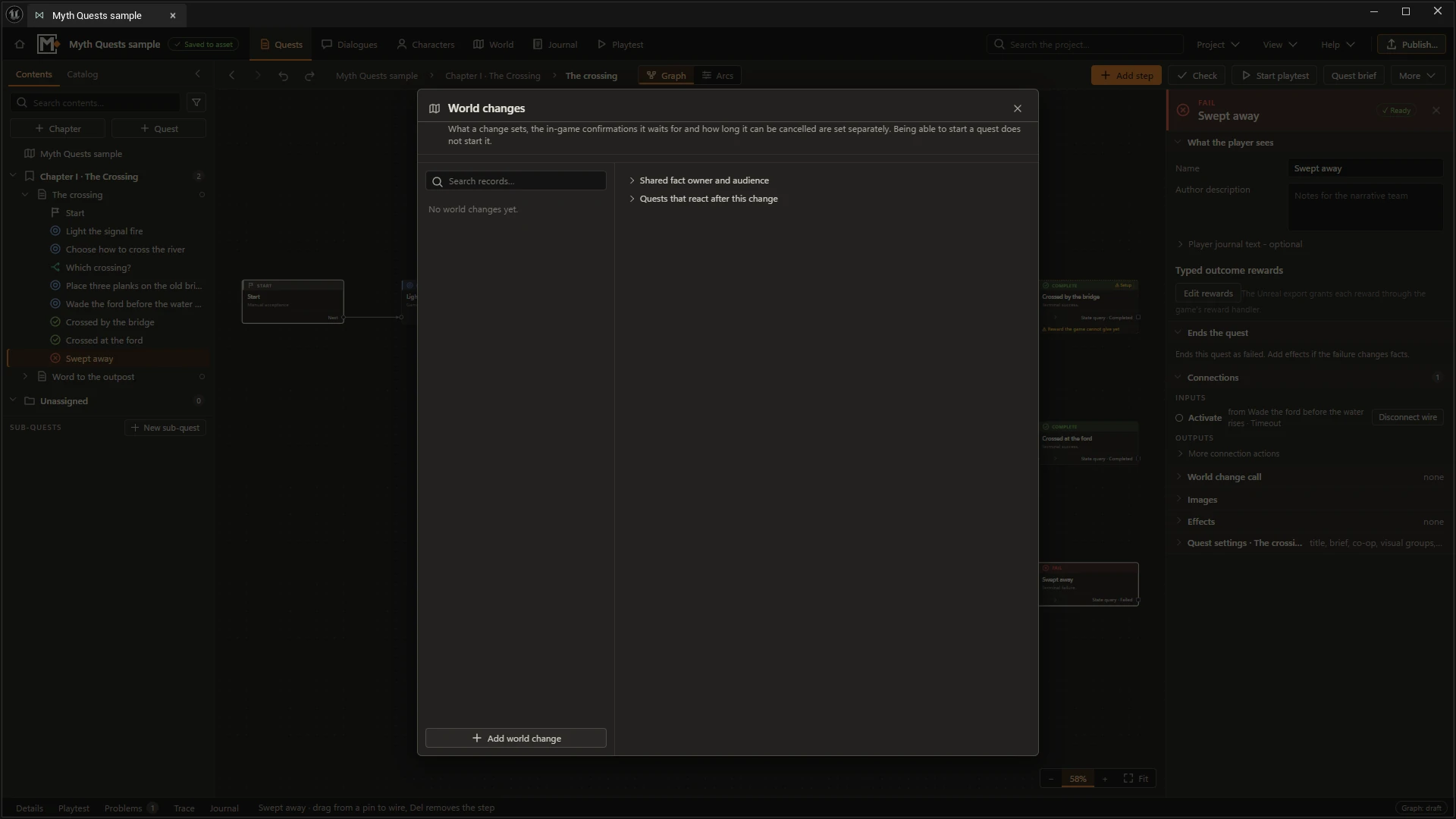
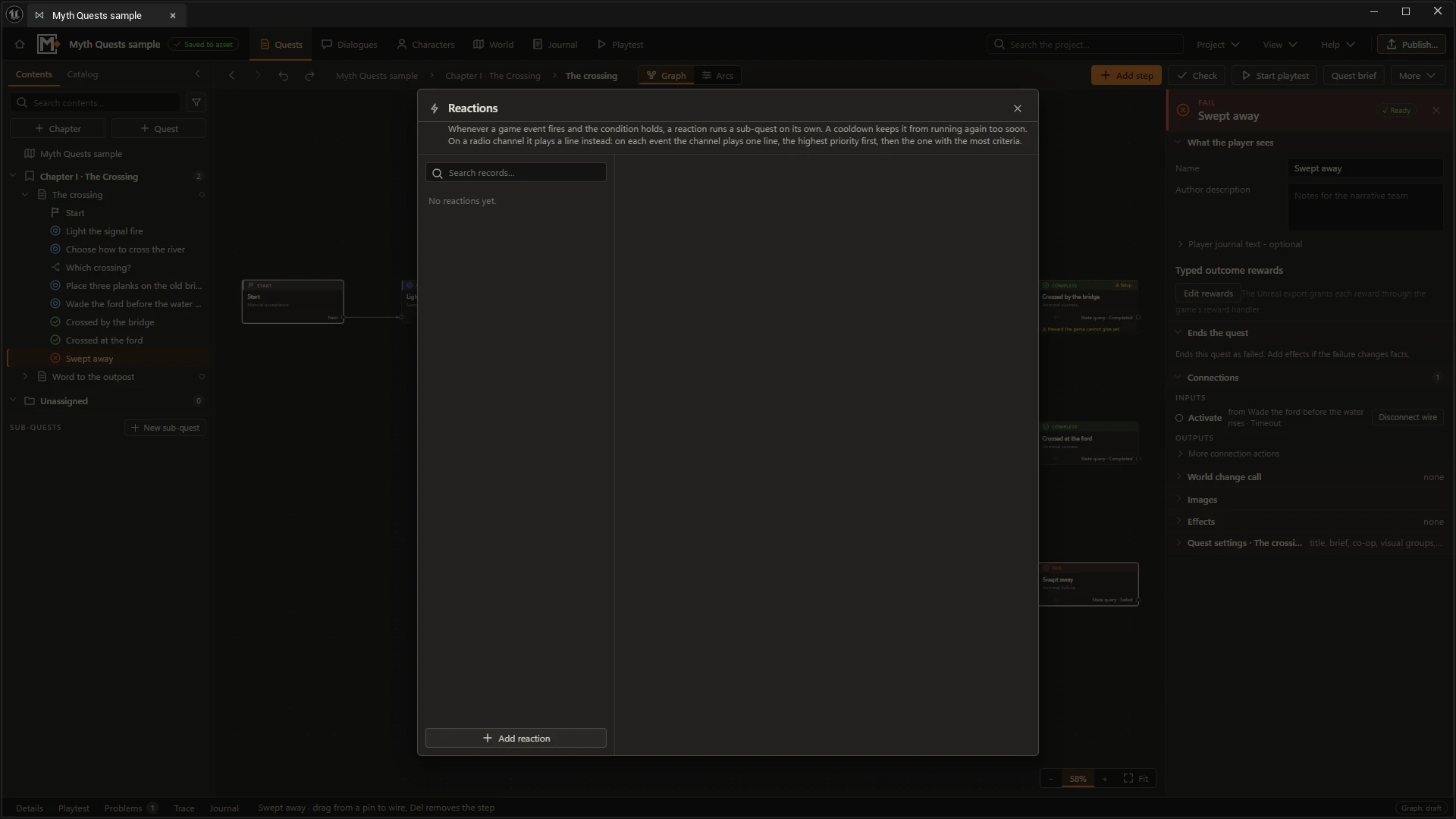
9Chapters and campaigns
A chapter is a group of quests, an act of the story. The order of chapters makes the campaign: a chapter opens at the start of the game or after an ending of another chapter. A large project is kept in chapters: each one loads separately.


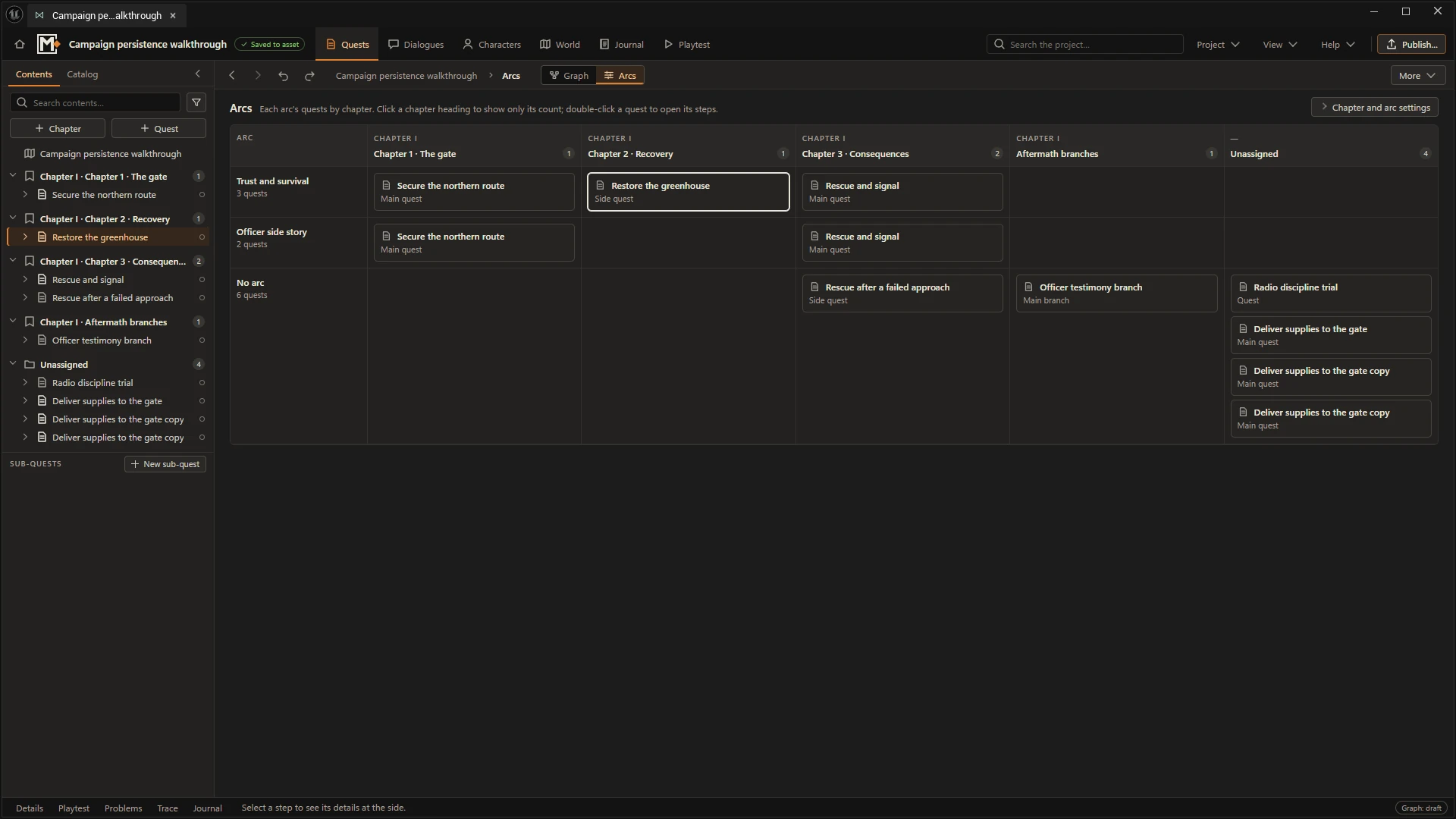
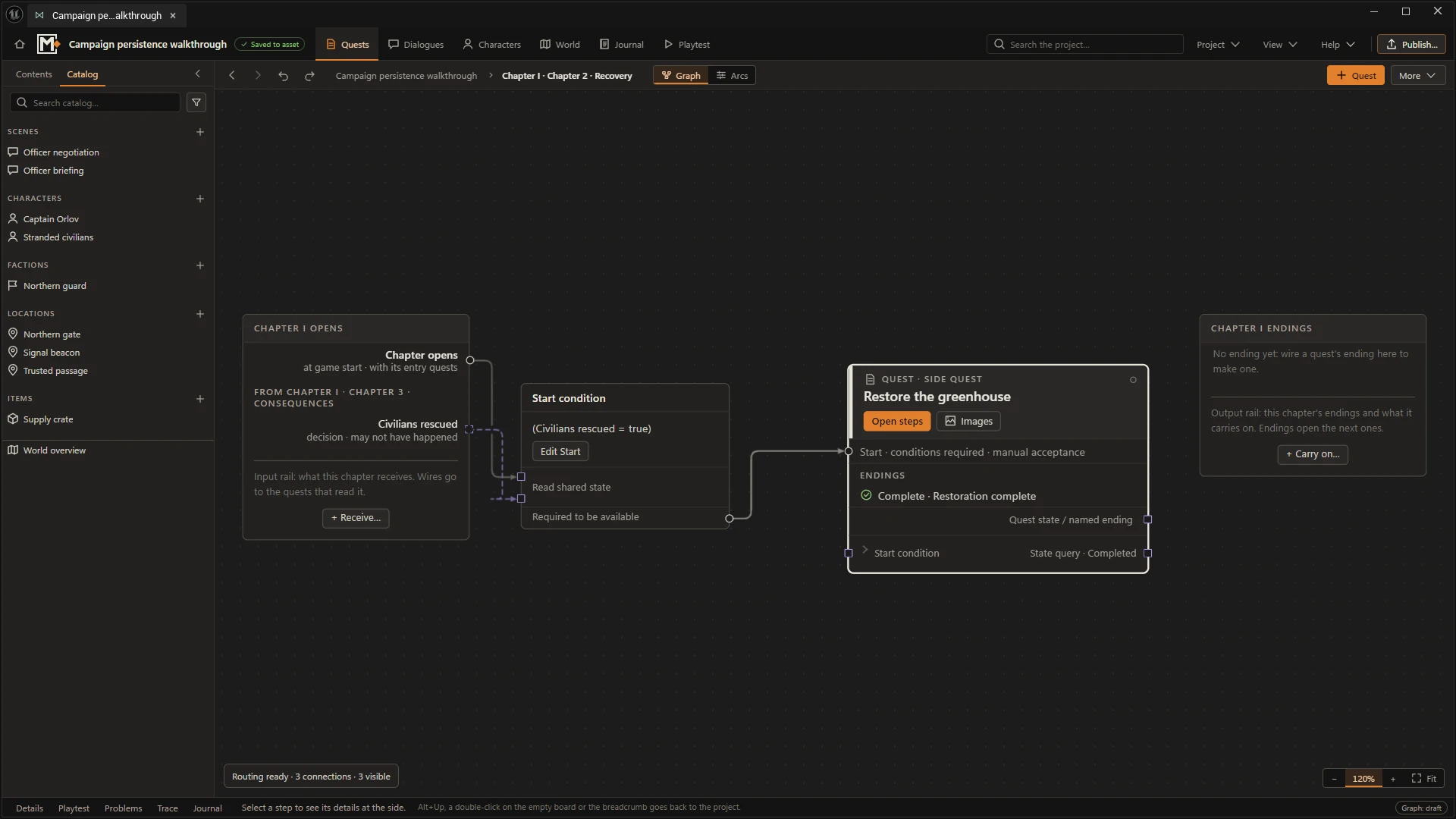
- A new chapter: + Chapter (in the left column or on the chapter map's toolbar). A quest moves into a chapter through the Chapter membership field in the quest settings.
- Double-clicking a chapter on the map (or selecting it and pressing Enter) opens its graph.
- For the game, chapters are linked by the party facts
Chapter_<chapter>_<ending>(see Facts).
10Arenas, repeatable and co-op quests
An arena: rounds through a sub-quest

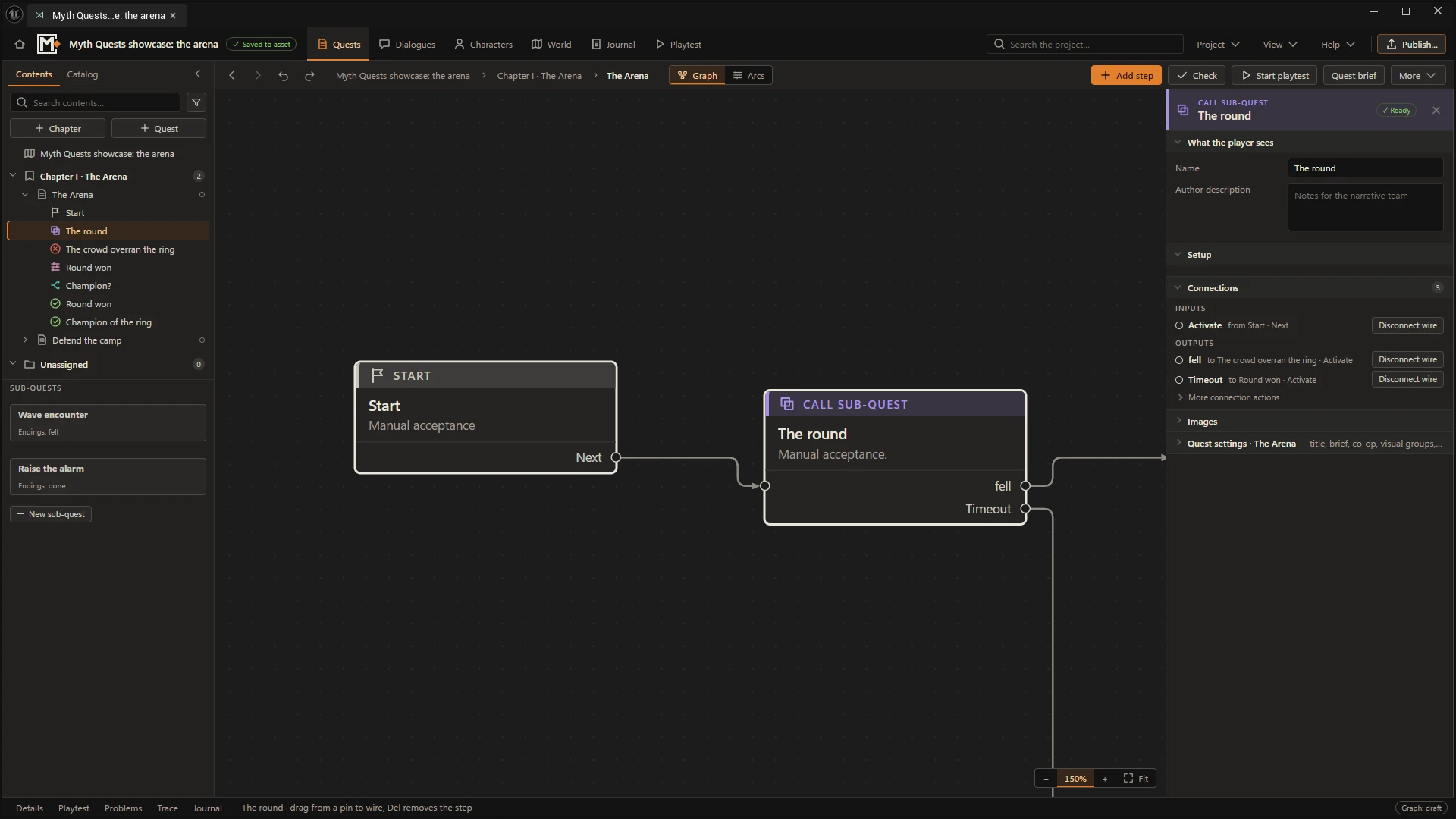
A quest cannot loop back on itself; a repeated round is made with a branch that calls the sub-quest again, and a "timed arena" with a repeatable quest.
Repeatable quests

A quest with the Can be taken again checkbox can be taken again after any ending, by the same player, party or world: the game simply calls Start Quest once more. With a wait set, Start Quest and Can Start Quest answer Waiting until it has passed; Get Repeat Wait Remaining gives the seconds left, and Get Quest Takes how many runs have finished. Each run gives the rewards of its ending and rolls the chances afresh. An automatic repeatable quest starts again only when its start condition becomes true again.
Co-op
Every quest has a co-op rule (Co-op, timing and availability). The defaults:
| Setting | Default | Meaning |
|---|---|---|
| Who advances | Any member | Any player's events advance a party quest |
| Credit | Present | Players connected at each goal and at the ending get credit |
| Rewards | Each present | Every player present gets the ending's rewards |
| Late join | Adopt progress | A player who joins later sees the current progress and takes part from there |
| On leave | Continue | A player leaving does not end the quest |
| Abandon | Leader | The leader can abandon for everyone (the listen-server host, or the first player on a dedicated server) |
A quest's scope: personal (each player has their own), party (one for the group) or world. One player's personal quests are invisible to the others.
11Radio
Radio is lines over communication channels: a call from headquarters, squad chatter. A rule (a reaction) plays a line on a channel; the plugin does not play the sound or draw the subtitle itself: it passes the line to the game and waits for it to end.


In the game: On Radio Line Started / On Radio Line Ended (on the party or player component, or on a Listener with a Radio Channel filter), Report Radio Line Finished (Play Id) when the voice ends, Interrupt Radio Channel, and Get Playing Radio Line for a player who joins later. The journal widget plays a line's voice as a 2D sound by itself and reports the end on the host; Present Radio Line draws the subtitle. A line with no sound and no duration lasts as long as the reading speed in Project Settings → Myth Quests → Radio gives it.
12Publishing to the project
Publishing turns the whole project into ordinary Unreal assets: one quest catalog, one asset per quest, pictures as textures. The game works only with them.
- Publish… on the top bar (or Project → Export…) opens the Publish window: "Publishes the whole project into this Unreal project as one quest catalog: every quest, dialogue scene and card picture becomes an asset under /Game/MythQuests/". Under the title, three steps: Check → Publish → Done.
- If the project has errors, publishing is blocked: the window says Publish blocked · N issue(s) and lists them; Open source beside each one takes you to the error, and Check again checks the project again.
- With no errors, press Publish to the Unreal project.
Expected: Published to /Game/MythQuests/<project key>, and below it the catalog, the export size, the pictures, the version and a summary of the quests (created / updated / unchanged).
If it says "Publish blocked": fix what is listed and press Check again. - Register the catalog in Project Settings → Myth Quests → Catalogs (once; the Next · once per project box in the window says so after a publish).
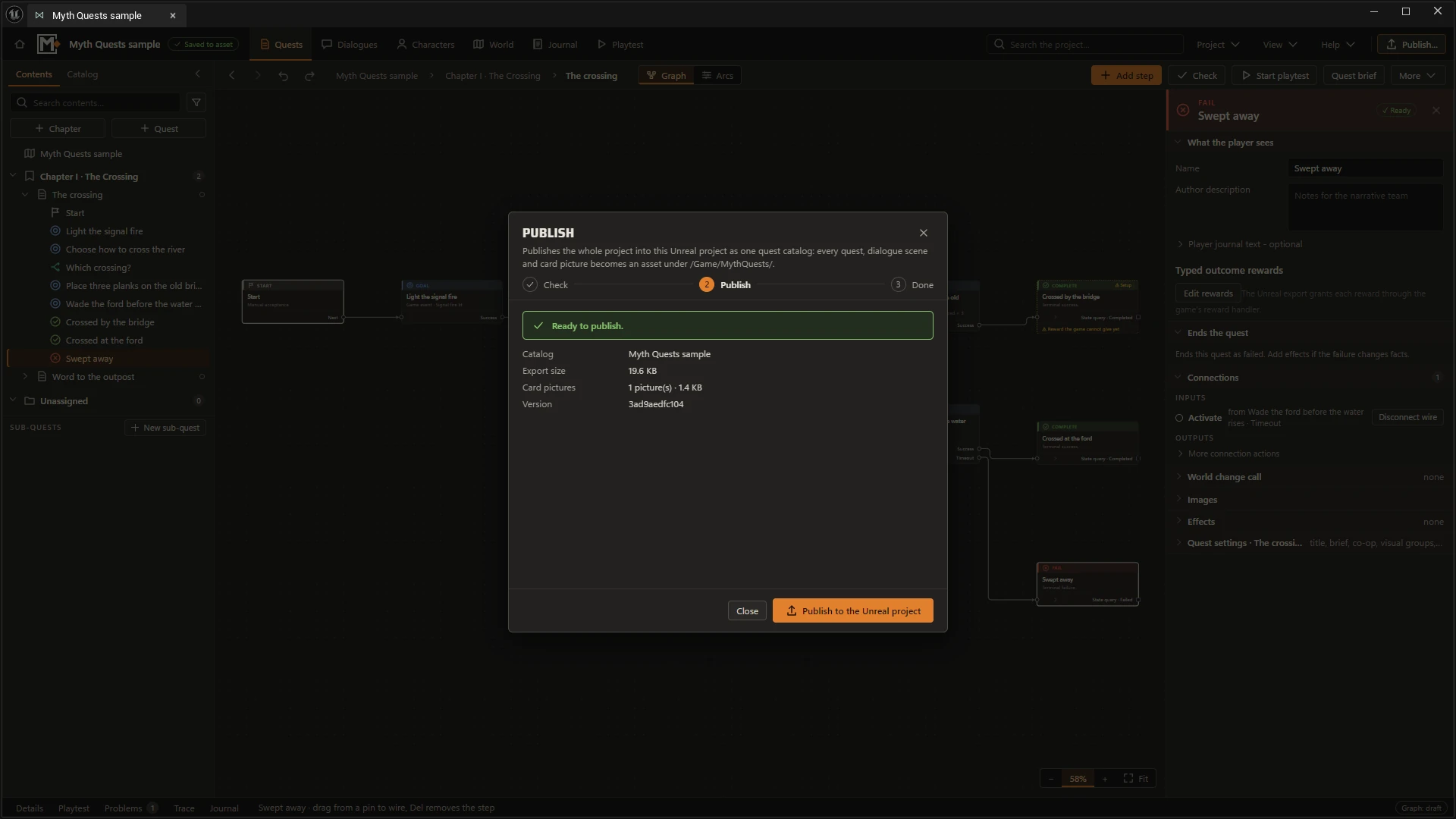
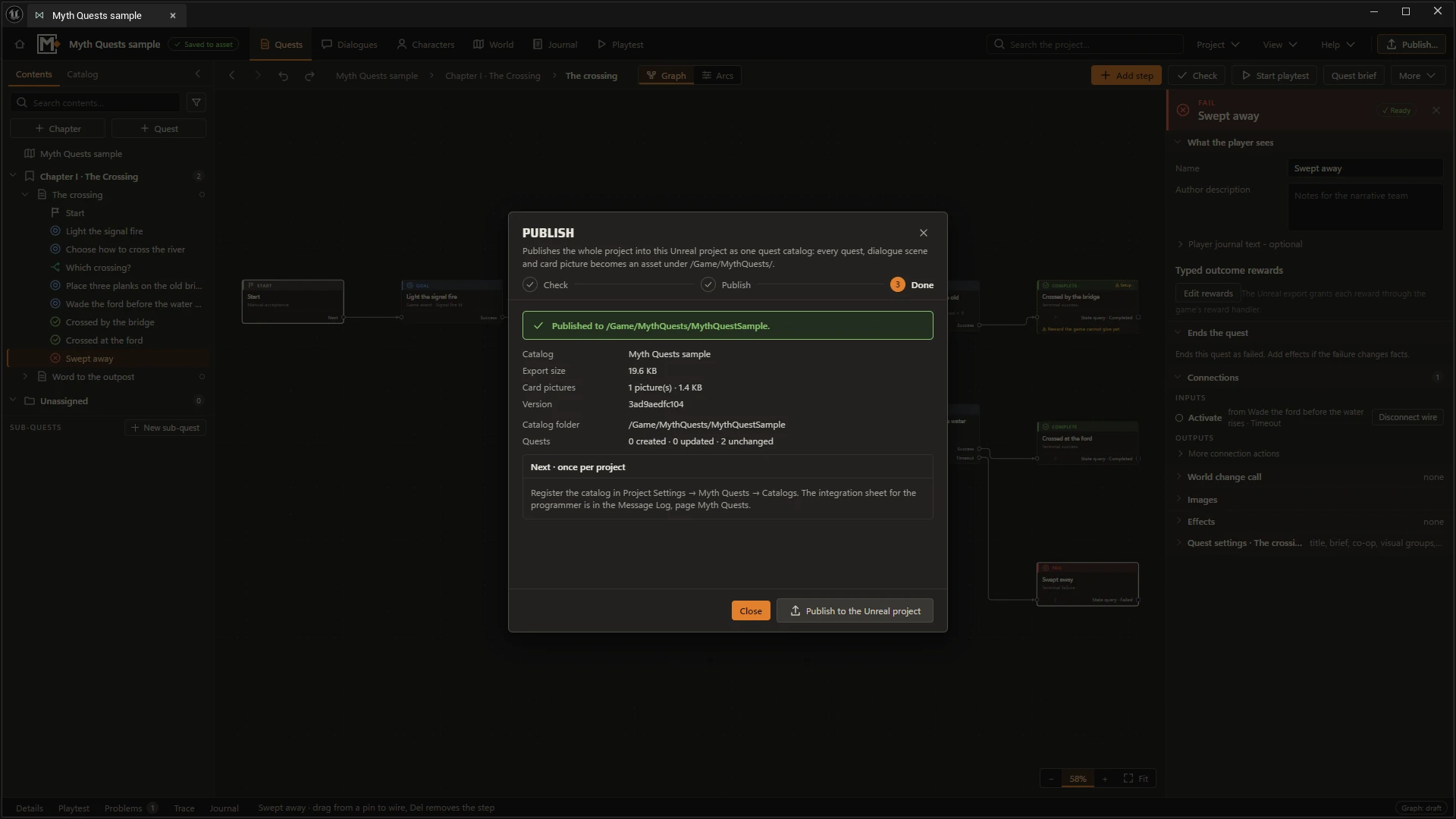
/Game/MythQuests/MythQuestSample: 2 quests, 1 picture, the catalog version.
/Game/MythQuests/MythQuestSample: the
catalog MythQuestSample (of type Myth Quests Catalog), the folders Quests (an asset per quest) and
Media (pictures).| Asset | Where |
|---|---|
Catalog (UMythQuestCatalog) | /Game/MythQuests/<project key>/<project
key> |
Quest (UMythQuestAsset) | /Game/MythQuests/<project key>/Quests/<quest
key> |
| Pictures | /Game/MythQuests/<project key>/Media/ |
| Earlier versions of a changed quest | <quest asset>_Versions/V_<version>, so
that save games and running quests stay on their own version |
- Publishing again updates the assets in place. A quest whose structure changed gets a new version; the
previous one stays in
_Versions. - A quest deleted from the project stays as an asset (save games read it), but the game no longer knows it (Unknown Quest). Delete the asset yourself once no save game uses it.
- Publishing messages go both to the window and to the Myth Quests page of the Message Log. A
GameplayTag that is missing from the project is a warning with an Add to project tags button (it writes
Config/Tags/MythQuests.ini); after it, publish again. - Asset Manager. The first publish adds the
MythQuestCatalogandMythQuesttypes to Project Settings → Asset Manager (Config/DefaultGame.ini). The game build gets the catalogs from the Catalogs list and everything your content refers to. - Without the editor inside Unreal, an
.mqexportfile gives the same result: drag it into the Content Browser (with the.mqexport.mediafolder of pictures beside it); to import again, use Reimport on the catalog.
The integration sheet

The same sheet is written to the Message Log after every publish. For the Sample it looks like this:
Event SignalFireLit (client request): send it with Send Quest Event; used by quest TheCrossing goal LightSignalFire.
Event CrossingChosen (client request): send it with Send Quest Event; used by quest TheCrossing goal ChooseCrossing.
Event BridgePlankPlaced (client request): send it with Send Quest Event; used by quest TheCrossing goal RepairBridge.
Event FordWaded (server): send it with Send Quest Event; used by quest TheCrossing goal WadeFord.
Event OutpostReached (server): send it with Send Quest Event; used by quest WordToTheOutpost goal ReachOutpost.
Event CampReached (server): send it with Send Quest Event; used by quest WordToTheOutpost goal ReturnToCamp.
Event CrossingWardenAsked (client request): send it with Send Quest Event; used by quest TheCrossing goal AskTheWarden.13Connecting in Blueprint
The whole connection is done in Blueprint, with no C++. Below are the graphs from the sample project (the map
/Game/Sample, the folder /Game/QuestSample/Blueprints): each is shown as a picture and
written out as a chain of nodes. The plugin's nodes are in the action menu under the Myth Quests category; the
subsystem node is called Get Myth Quests.
The sample project: five locations
The sample project (a separate download) plays every example project of the editor's Open example… list in five locations. 1-4 players start in the River Camp; its four travel gates take the whole party to the other four locations, and each of those has one gate back. Every quest giver, goal place and lever in the maps is wired with the plugin's own parts (Quest Giver, Quest Place, Interactable) and shown with its ready widgets; what a player sees there is described in The player layer.
| Location | Project (Open example…) | What it shows |
|---|---|---|
| River Camp (the hub) | the example export Myth Quests sample (The crossing, Word to the outpost); the job board | Party quests and party facts (a lever, or one player's answer to the Warden as a party decision, picks the bridge or the ford for everyone; the others read "<name> is answering for the party"), a personal number fact, quests taken again after a 20-second wait, personal jobs a partner never sees, chance rewards, a party job that pays everyone present |
| East Road | the lost caravan; the road home | Dialogue answers that open by what the party found ("Needs: the ledger"), optional goals, three endings; an escort (Nadia follows the nearest player) against a 4-minute clock that travels to the River Camp mid-quest; a louder radio line cutting into another; failure and a retry |
| Split Valley | the split valley | One story in three chapters: taking one leader's job closes the other's for good ("Not while: you work for Grigory"), the side's gate opens on the chapter's ending, the tower chapter reads the first choice again, the radio channel with combat holding it |
| Sealed Ruin | the ruins seal | A world quest; three rune stones touched in order, a wrong stone darkens all three (one sub-quest per touch); "stones lit 1/3" counted from a fact; the scholar on the radio |
| Proving Ring | the arena (or the arena gauntlet) | The quest asks the game for waves and the game reports kills back; a round taken again at once, "rounds won 1/3"; the same wave encounter called at the traders' camp |
Each goal in these projects names its place (a World record), so its pin appears on the actor that carries that record; the facts a closed answer waits for carry the words the player reads after "Needs:"; and the rewards the journal promises before an ending are ticked Show in the journal. The graphs below are the sample's own Blueprints.
1. The frame: Game Mode, Player State, Game State
- Player State (in the sample,
BP_SamplePlayerState): Add Component → Myth Quest Player Component. - Game State (
BP_SampleGameState): Add Component → Myth Quest Shared Component. - Game Mode (
BP_SampleGameMode): set Player State Class and Game State Class to these two Blueprints. - The catalog goes in Project Settings → Myth Quests → Catalogs.
- Expected on Play:
LogMythQuests: Display: Quest system ready: 1 catalogs, 2
    quests loaded in … ms.
If a component is missing, the plugin adds it itself when the game starts; you add your own so that you can bind its events (Details → Events → + on the component).
2. Starting a quest from a client: a quest giver

Offer (Player State)
  → Get Component by Class (Target = Player State, Component Class = Myth Quest Player Component)
  → Cast To MythQuestPlayerComponent
  → Request Start Quest (Target = the component, Quest = the Quest variable, the quest asset)
  → Return Node
Request Start Quest works both on a client and on the host: the server checks the request, and a refusal arrives as the On Request Refused event on the same component. On the server you can call Get Myth Quests → Start Quest directly (Quest; Target = the Player State for a personal quest, or empty for a party quest; Instigator).
3. An event and a fact from the game: a route lever

Pull (Player State)
  → Get Myth Quests → Set Fact Bool (Fact Key = BridgeRoute, Value = the Bridge variable, Target = empty: a party fact)
  → Get Myth Quests → Send Quest Event (Event Key = CrossingChosen, Instigator = Player State, Number = 0)
  → Return Node
This is server code: the lever is pulled on the server. The goal "Choose how to cross the river" waits for
CrossingChosen, and the branch "Which crossing?" reads the fact BridgeRoute.
4. An event from a client

SendQuestRequest (Event Tag)
  → Get Component by Class (Target = the controller's Player State, Component Class = Myth Quest Player Component)
  → Cast To MythQuestPlayerComponent
  → Request Quest Event by Tag (Event Tag, Number = 0)
  → Return Node
Quest.Event.SignalFireLit.From a client, only events marked Sent by: A client request in the editor are accepted; the others are refused through On Request Refused.
5. A number fact: a supply crate

TakeSupply (Player State)
  → Get Myth Quests → Get Fact Number (Fact Key = SuppliesCarried, Target = Player State) → Return Value, Known
  → Select Float (Known ? Return Value : 0) → + 1
  → Get Myth Quests → Set Fact Number (Fact Key = SuppliesCarried, Value, Target = Player State)
  → Return Node
The same, shorter: Change Fact Number (Delta = 1). An unknown fact is not 0, which is why the example checks Known first.
6. Saving and loading

SaveQuests
  → Create Save Game Object (Save Game Class = BP_SampleSaveGame) → Cast To BP_SampleSaveGame
  → SET Quest Progress = Get Myth Quests → Capture Quest Progress
  → Save Game to Slot (Save Game Object, Slot Name, User Index = 0)
  → Return Node
BP_SampleSaveGame has a Quest Progress variable of type Myth Quest Save Data with the
SaveGame flag ticked. Loading (LoadQuests): Load Game from Slot → Cast To BP_SampleSaveGame
→ Restore Quest Progress (Quest Progress). The report says Restored, Empty, Corrupt or
Newer Format. Save and load on the server (in single player, always).

7. Reacting to quests: the level director and the HUD

/MythQuests/QuestComponent/BP_MythQuestDirector). Every quest event calls the function with the same
name; create a child, place it in the level and override the ones you need (Quest Completed: Quest and Outcome
Key).

Other ways to react: a Myth Quest Listener component on any actor (the Quest, Objective Key, Fact Key and Radio Channel filters in its details; the On Objective Reached and On Fact Became events), or the events of the components themselves on the Player State / Game State.
8. The journal

- A Widget Blueprint with Class Settings → Parent Class = Myth Quest Journal Widget.
- Override Present Journal (Journal): rows with the title, the summary, the current journal line, the goals in the order they are played, and pictures. It is called on every change, after a reconnect or a level change, and when the language changes.
- Create the widget for each local player, for example in the HUD's BeginPlay: Create Widget (Owning Player = Get Owning Player Controller) → Add to Viewport.
- Pictures: Get Media Role (Thumbnail, Portrait, Cover, Background) → the texture is a soft reference: Load Asset Blocking before Set Brush from Texture.
9. Dialogue
Begin Scene (Scene Key, Player State) on the server begins a scene; a client asks with Request Begin Scene on the player component. Get Active Scene (Player State) gives what to show: the speaker, a line (then Advance Scene / Request Advance Scene) or a choice with answers (Choose Answer / Request Choose Answer). The On Scene Changed event tells you when to read it again. To decide on the server whether a player may begin a scene, use the Myth Quest Scene Request Handler interface (Approve Scene Request) and Set Scene Request Handler.
10. Rewards and game actions
- Rewards: Class Settings → Interfaces → Add → Myth Quest Reward Handler on the Game Mode (or on another object, plus Set Reward Handler). Implement Grant Quest Reward (Recipient, Reward): give the item or currency by Reward Key and Amount, and return true.
- Game actions: the Myth Quest Action Handler interface, plus Set Action Handler in BeginPlay on the server. Handle Quest Action (Action Key, Parameters, Instigator, Quest): Switch on Name on the Action Key; parameters through Get Action Number / Bool / Entity / Name / Text. When it is done, answer with Send Quest Event (Record = Get Action Entity, Quest = the Quest from the handler).
11. The quest call node (Quest Calls)
The action menu has Myth Quests → Quest Calls: nodes bound to one quest asset, whose drop-down lists are the keys of that quest's goals, endings, timers and events. Get Objective States gives an output for each goal, and Switch on Quest Outcome an execution output for each ending. After a new publish the node updates itself; a key the quest no longer has is a compile error naming it. Double-clicking the node opens the quest asset.
12. The debugger

14The player layer: what players see
The plugin ships the quest interface for the player, ready to play: marks over quest givers, pins on goals, a tracker, an interaction prompt, a dialogue window, a journal, notifications and radio subtitles. It is eight Widget Blueprints and one style asset. Nothing here is a mock-up: the sample project's five locations run on exactly these widgets, and you can use them as they are, restyle them or replace any one of them with your own.

What a player sees
| Element | What the player sees |
|---|---|
| Quest-giver marks | A diamond over a person or a board that has something for this player. Solid orange with an exclamation mark: a quest for the party. Hollow orange: a personal quest. A tick: a goal of a quest the player carries is here (report back, deliver, talk). Grey: a quest already taken, a quest whose conditions are not met yet (a lock), a job that can be taken again later (with the time left). The strongest state shows. |
| Objective pins | A diamond on the place of an open goal, with the distance in metres and, near the crosshair, the goal's text and its count. A goal off screen is held at the screen edge with an arrow. A goal that has several places (three piles of planks) is marked on the nearest one and says "3 places". A goal on a clock shows the countdown. |
| Tracker | Top right: the focused quest open (title, whose quest it is, its goals with counters like "0/3", optional goals marked, a countdown and a bar when the quest has a time limit) and up to three more tracked quests as one line each. A goal that was just done stays in the list ticked and grey instead of vanishing. |
| Interaction prompt | Under the crosshair: a key cap, a verb and a name (E · Talk · Warden Ilsa). A thing that needs the key held fills the key's frame while it is held. A locked thing shows a lock and the reason (Needs: the gate key). When a partner is talking to the same person, a second line says "<name> is talking too". |
| Dialogue window | Bottom centre: the speaker's tile and name, a line that writes itself out (a key shows the rest at once), then the answers on the keys 1 to 4, the arrows or the mouse. An answer that is not open is shown greyed with a lock and its reason in the author's own words (Needs: the ledger) — or hidden, as the author chose per answer. |
| Journal | A full-screen page on J: the quests in tabs (active, completed, failed), grouped by chapter, then the player's personal quests, then jobs that can be taken again. The chosen quest shows its picture, summary, the journal line that applies now, goals with their states and counts, the rewards the author promised, and what the quest means in co-op. Buttons: track, abandon (on a party quest only the party leader's button is live by default). A chapter that is not open yet is listed as closed, not spelled out. |
| Notifications | One banner at a time at the top centre (quest started, completed, failed), small lines on the left (goal updated, reward received, a chance reward that did not drop), and one large banner when a chapter opens. A player who joins late, loads a save or arrives from another level gets no banners for what already happened. |
| Radio subtitle | Bottom centre: the speaker's tile, name, the channel ("whole party" or "only you") and the subtitle, while the line plays. |
What co-op does
Nothing to set up: every machine shows its own player's view of the same game.
- A personal quest never shows on a partner's screen: no tracker line, no pin, no mark, no banner. It does not reach the partner's machine at all, so it cannot leak by a mistake in your widgets.
- A party quest is the same for everyone: the same goals and counts in every tracker. Each player sees their own distance on a pin.
- Marks are per player: the same board can show a hollow mark to one player (their own copy of a job is free) and none to another (theirs is running).
- Everyone can talk to the same person at once, each in their own window and at their own pace.
- A party decision has one voice. A scene that belongs to a party quest is answered by one player. The others see the lock on the prompt and "<name> is answering for the party".
- Tracked quests are each player's own; the chapter banner shows on every screen once.

Switching it on
- On the player's side, call Add Myth Quests HUD (Player Controller = Get Player Controller), for
example from the controller's or the HUD's BeginPlay. Or add the Myth Quest HUD component to your Player
Controller Blueprint: it puts the layer on screen by itself on the local player's machine.
Expected: in Play, the tracker appears top right as soon as a quest starts; J opens the journal; T moves the focus to the next tracked quest; E uses the thing in front of you and continues a line; 1–4 pick answers. A gamepad does the same, and the key caps show the device used last. - To switch one element off, untick it on the component (Myth Quests → HUD: Show Giver Marks, Show Pins, Show Tracker, Show Prompt, Show Dialogue, Show Journal, Show Notifications, Show Radio). The game keeps its own for that element.
- To use your own widget in a slot, set its class on the component (Tracker Class, Dialogue Class …). The class is a child of the plugin's widget for that element, so the reading and the timing stay done for you and you override the look. A widget of your own that is not a child (the element's switch off) is fed by calls such as Choose Number or Toggle on the element, which you get from the component.
- Handle Keys off: the layer stops listening to keys, and your game calls the elements itself. The keys themselves (E, J, T, Esc, the answers) are in the style asset.
The layer needs the project's journal and quests set up as in the sections above: a registered catalog, the player and shared components. Nothing else is required.
Placing parts in a level
The layer knows who gives a quest and where a goal happens from three small components you add to the actors of your level. They draw nothing and replicate nothing; each machine asks the quest system for its own player. The drop-downs list the records, quests, events and scenes of the catalogs your project holds.
| Component | Put it on | Main settings |
|---|---|---|
| Myth Quest Place | an actor that is a World record: a character, a location, an item — or an empty point | Record (drop-down of World records). A goal whose Place is that record gets its pin on this actor. Several actors may carry one record; the nearest gets the pin. An actor spawned by the game may carry it too, so pins follow moving things. Send Event When Reached, Reach Radius Meters (5 m by default) and Reach Event: the first time a player comes within the radius, that event is sent once for that player (again only after they leave and come back). It replaces a hand-made trigger volume, in co-op for every player. |
| Myth Quest Giver | a person or a board that offers quests | Quests (the ones offered, a drop-down); Scene On Talk (empty: Talk starts a quest that can be taken now); Speaker (the giver's own record, so a goal placed on the giver shows the tick mark); Offer Before Starting (Talk opens your offer window instead of starting at once; it calls Accept Quest). It answers per player with one of the marks: Quest for the Party, Quest for You, Goal Here, In Progress, Not Yet, Waiting, or none. |
| Myth Quest Interactable | anything the player can use | Verb ("Talk", "Use", "Pick up", "Repair"; empty: Talk for a scene or a giver, Use otherwise); Display Name (empty: the record's name); Reach Meters (3 m); Hold Seconds (0: a press; else the prompt fills while the key is held); Action: Begin a Scene, Send an Event, Offer the Giver's Quests, or Only On Used (the game reacts to On Used itself). Set Lock Reason locks it with a text ("Needs: the gate key"); an empty text unlocks. |
A person who both gives a quest and is a goal's place carries a Giver and a Place. Myth Quest Look-at goes on the player's pawn or controller: it finds the thing in front of the local player (a trace along the view, Trace Distance Meters and Trace Channel) and feeds the prompt and the E key. A game with its own interaction system leaves it out: after its own pick it calls Set Prompt Target on the Look-at with the Interactable it found (one call), and the prompt follows; Clear Prompt Target gives the pick back to the trace.
What you write in the editor
- A goal's place. On a goal, Place picks a World record (a location, a character or an item). The pin stands on the level's actor that carries the record. A goal with no place has no pin, which suits a mystery or a "find it yourself" goal. Show a marker off keeps the place but hides the pin.
- The words after "Needs:". On a fact or a game condition, Shown to players as is what a player reads when a closed answer waits for it ("the ledger"). Left empty, the plugin falls back to the item's name for a fact that counts an item, the quest's title for a quest condition, and else to the key written as words.
- Rewards before the ending. Show in the journal on a reward line: the journal lists that line while the quest still runs. A quest with several endings promises only what you tick.
- A counted goal. A goal on one number fact compared with a whole number (at least 3, equals 3) shows that fact's count in the tracker, on the pin and in the journal ("stones lit 1/3") without any lookup on your side.
Tracked quests and chapters
Each player tracks up to four quests (the project setting Tracked Quest Limit): one focus shown open, plus three. A new quest joins the list and takes the focus unless the player chose one. T cycles the focus (that is also a choice); in the journal the player tracks or untracks a quest. A quest that ends leaves the list, a full list drops its oldest line. The list is each player's own and is saved with their progress.
Chapters written in the editor reach the game with their name, order, quests and opening rule. The journal groups by chapter. When a chapter opens for a player the one large chapter banner shows, once per machine: never for a chapter already open when the player arrives, never at a late join, a load or a level change.
The speaker tile
The framed square next to the speaker's name in the dialogue and radio windows shows, first match wins:
- The character's own picture: the portrait set on the character in the editor (Replace portrait on the World record). It fills the tile, cropped to the square around its middle.
- Otherwise the style's picture: by default the Myth Quests mark. In DA_MythQuestsHudStyle the one Speaker Picture slot (category Speaker) takes any texture of yours and changes it for the whole project, with no code; Speaker Picture Margin sets the even margin around it. Leave the slot empty and a speaker without a picture of their own has no tile.

Re-skinning
Each element is its own Widget Blueprint, WBP_MythQuestTracker, WBP_MythQuestDialogue and so on, on a base class that does the reading and the timing. They and the style asset live in the plugin's content (/MythQuests/UI: show the plugin's content in the Content Browser). You work in UMG and in one asset, no code.
| In DA_MythQuestsHudStyle | In the Widget Blueprints |
|---|---|
| the five colours; both fonts (Saira Semi Condensed for titles and counters, Alegreya Sans for text); every icon and the key glyphs of the keyboard and the gamepad; the speaker picture; the keys; all timings and limits (how long a banner stays, the typewriter's speed, the prompt's hold, the pins' reach); every fixed word ("Needs", "Quest started", "optional", "<name> is talking too"), as localisable texts | sizes, margins, anchors, plates and frames, animations and sounds; where each widget sits on the screen |
What stays in the plugin: which quests, goals and answers show and when, who sees what in co-op, reading the state on the host and on clients (after a late join, a load or a level change), the order of notifications and the requests sent when a player answers, tracks, abandons or uses something. Both fonts are under the SIL Open Font License; see NOTICES.md in the package.
Not in version 1.0
- A compass strip. Pins held at the screen edge show direction and distance in any camera. The list of pins (Get Objective Pins on Myth Quests World) is readable from Blueprint, so a compass or a minimap of yours can be fed from it.
- Voting: a party decision is one player's answer, not a vote.
- A partner reading along in a party decision: the others see who is answering, not the answers.
- Leaving a conversation midway: give every choice a way out ("I will look around first").
- Name tags over players, health, a minimap, inventory, a pause menu: yours to draw.
- Rewards inside a running quest: a reward is paid at an ending; the journal can only promise it in advance.
- Pins show through walls.
15Connecting in C++
Everything available in Blueprint is available from C++ too: the same functions of the subsystem, the components
and the interfaces. Below are six files you can paste into a game module as they are: a MyGame module with
exactly these files was built on Unreal Engine 5.8.4 with the plugin (Result: Succeeded). Each file is given as
a picture and as text to copy. The class names (AMyQuestPlayerState, AMyQuestGameMode…) are
examples: rename them for your project.
The Instigator parameter in an actor. AActor already has
an Instigator field, so in the Game Mode and other actors the parameter is called Player: the
name Instigator will not compile (UHT: "shadowing is not allowed", MSVC: C4458).
Modules: the game module's Build.cs
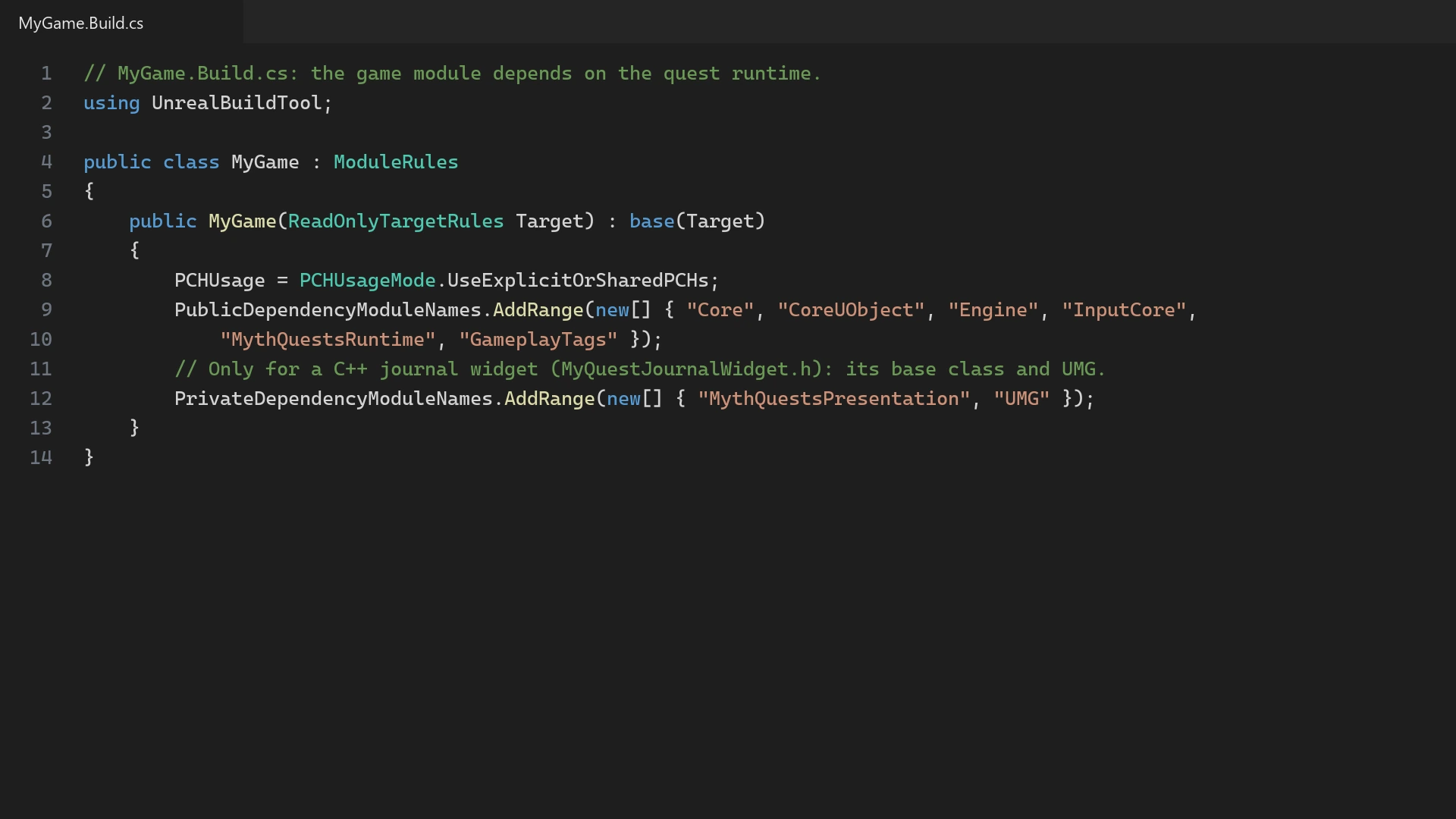
MyGame.Build.cs// MyGame.Build.cs: the game module depends on the quest runtime.
using UnrealBuildTool;
public class MyGame : ModuleRules
{
public MyGame(ReadOnlyTargetRules Target) : base(Target)
{
PCHUsage = PCHUsageMode.UseExplicitOrSharedPCHs;
PublicDependencyModuleNames.AddRange(new[] { "Core", "CoreUObject", "Engine", "InputCore",
"MythQuestsRuntime", "GameplayTags" });
// Only for a C++ journal widget (MyQuestJournalWidget.h): its base class and UMG.
PrivateDependencyModuleNames.AddRange(new[] { "MythQuestsPresentation", "UMG" });
}
}Player State and Game State with components, a reaction to a quest's end
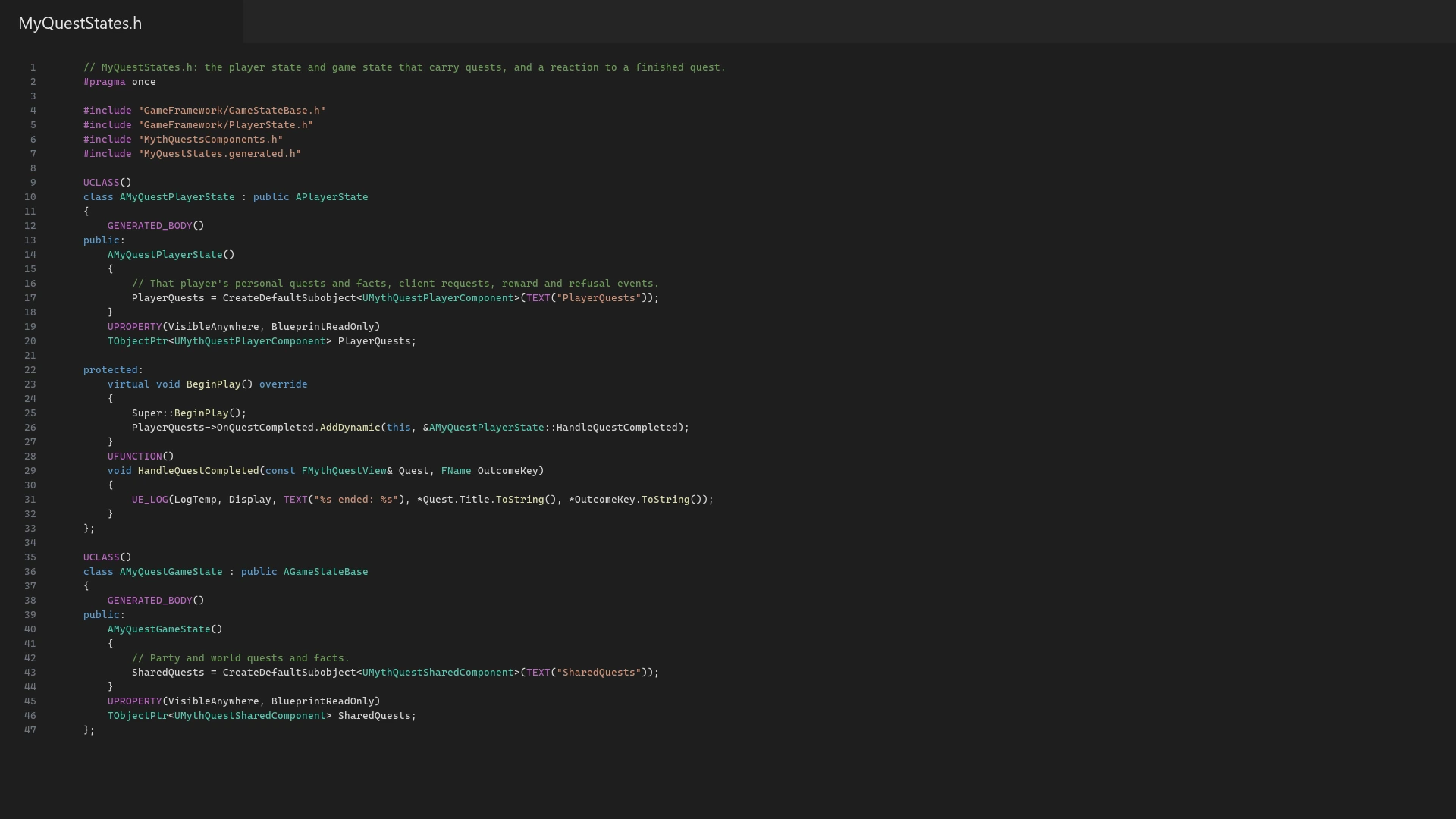
MyQuestStates.h// MyQuestStates.h: the player state and game state that carry quests, and a reaction to a finished quest.
#pragma once
#include "GameFramework/GameStateBase.h"
#include "GameFramework/PlayerState.h"
#include "MythQuestsComponents.h"
#include "MyQuestStates.generated.h"
UCLASS()
class AMyQuestPlayerState : public APlayerState
{
GENERATED_BODY()
public:
AMyQuestPlayerState()
{
// That player's personal quests and facts, client requests, reward and refusal events.
PlayerQuests = CreateDefaultSubobject<UMythQuestPlayerComponent>(TEXT("PlayerQuests"));
}
UPROPERTY(VisibleAnywhere, BlueprintReadOnly)
TObjectPtr<UMythQuestPlayerComponent> PlayerQuests;
protected:
virtual void BeginPlay() override
{
Super::BeginPlay();
PlayerQuests->OnQuestCompleted.AddDynamic(this, &AMyQuestPlayerState::HandleQuestCompleted);
}
UFUNCTION()
void HandleQuestCompleted(const FMythQuestView& Quest, FName OutcomeKey)
{
UE_LOG(LogTemp, Display, TEXT("%s ended: %s"), *Quest.Title.ToString(), *OutcomeKey.ToString());
}
};
UCLASS()
class AMyQuestGameState : public AGameStateBase
{
GENERATED_BODY()
public:
AMyQuestGameState()
{
// Party and world quests and facts.
SharedQuests = CreateDefaultSubobject<UMythQuestSharedComponent>(TEXT("SharedQuests"));
}
UPROPERTY(VisibleAnywhere, BlueprintReadOnly)
TObjectPtr<UMythQuestSharedComponent> SharedQuests;
};Starting a quest, events and facts
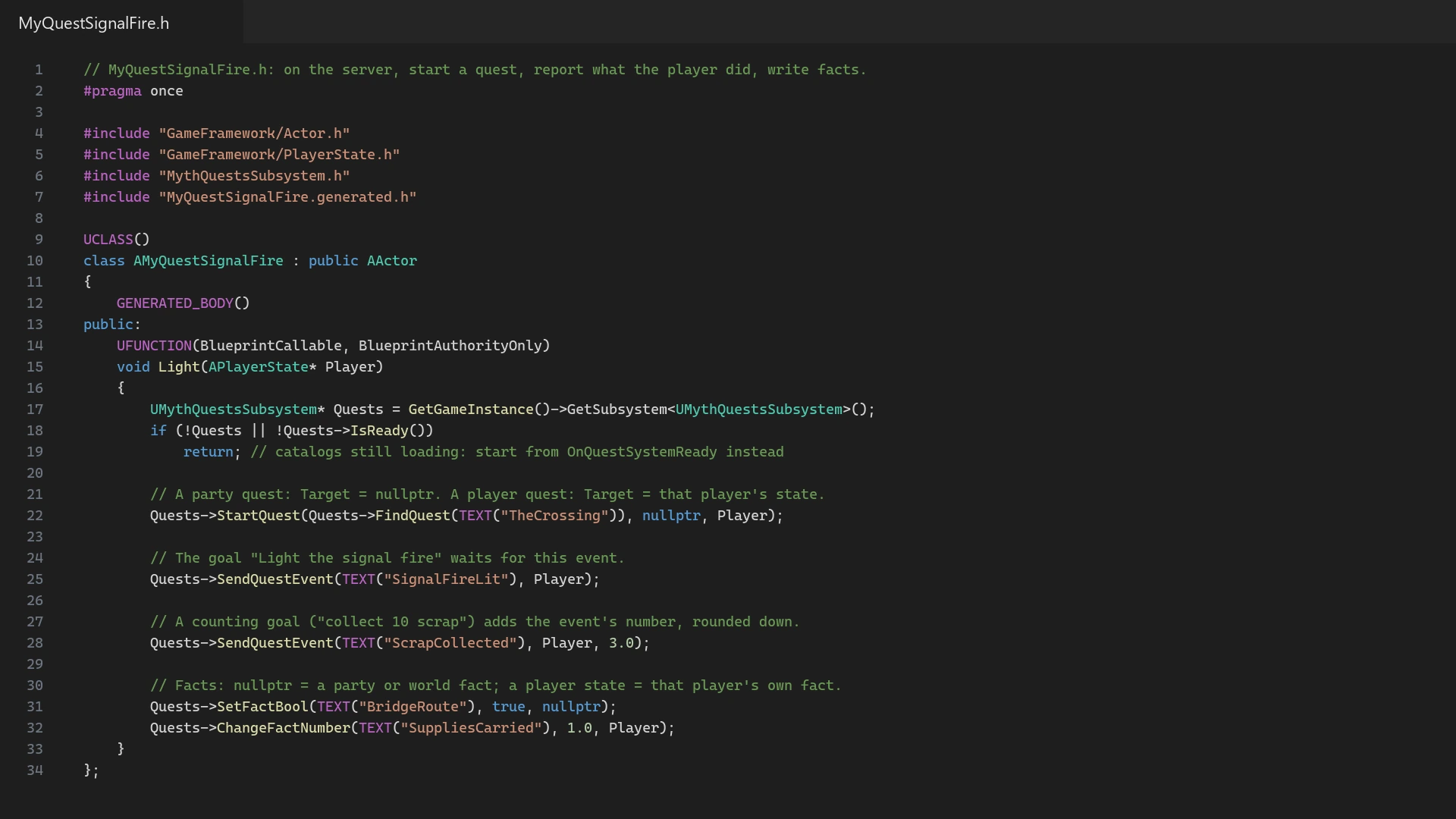
MyQuestSignalFire.h// MyQuestSignalFire.h: on the server, start a quest, report what the player did, write facts.
#pragma once
#include "GameFramework/Actor.h"
#include "GameFramework/PlayerState.h"
#include "MythQuestsSubsystem.h"
#include "MyQuestSignalFire.generated.h"
UCLASS()
class AMyQuestSignalFire : public AActor
{
GENERATED_BODY()
public:
UFUNCTION(BlueprintCallable, BlueprintAuthorityOnly)
void Light(APlayerState* Player)
{
UMythQuestsSubsystem* Quests = GetGameInstance()->GetSubsystem<UMythQuestsSubsystem>();
if (!Quests || !Quests->IsReady())
return; // catalogs still loading: start from OnQuestSystemReady instead
// A party quest: Target = nullptr. A player quest: Target = that player's state.
Quests->StartQuest(Quests->FindQuest(TEXT("TheCrossing")), nullptr, Player);
// The goal "Light the signal fire" waits for this event.
Quests->SendQuestEvent(TEXT("SignalFireLit"), Player);
// A counting goal ("collect 10 scrap") adds the event's number, rounded down.
Quests->SendQuestEvent(TEXT("ScrapCollected"), Player, 3.0);
// Facts: nullptr = a party or world fact; a player state = that player's own fact.
Quests->SetFactBool(TEXT("BridgeRoute"), true, nullptr);
Quests->ChangeFactNumber(TEXT("SuppliesCarried"), 1.0, Player);
}
};Rewards, game actions, the player key
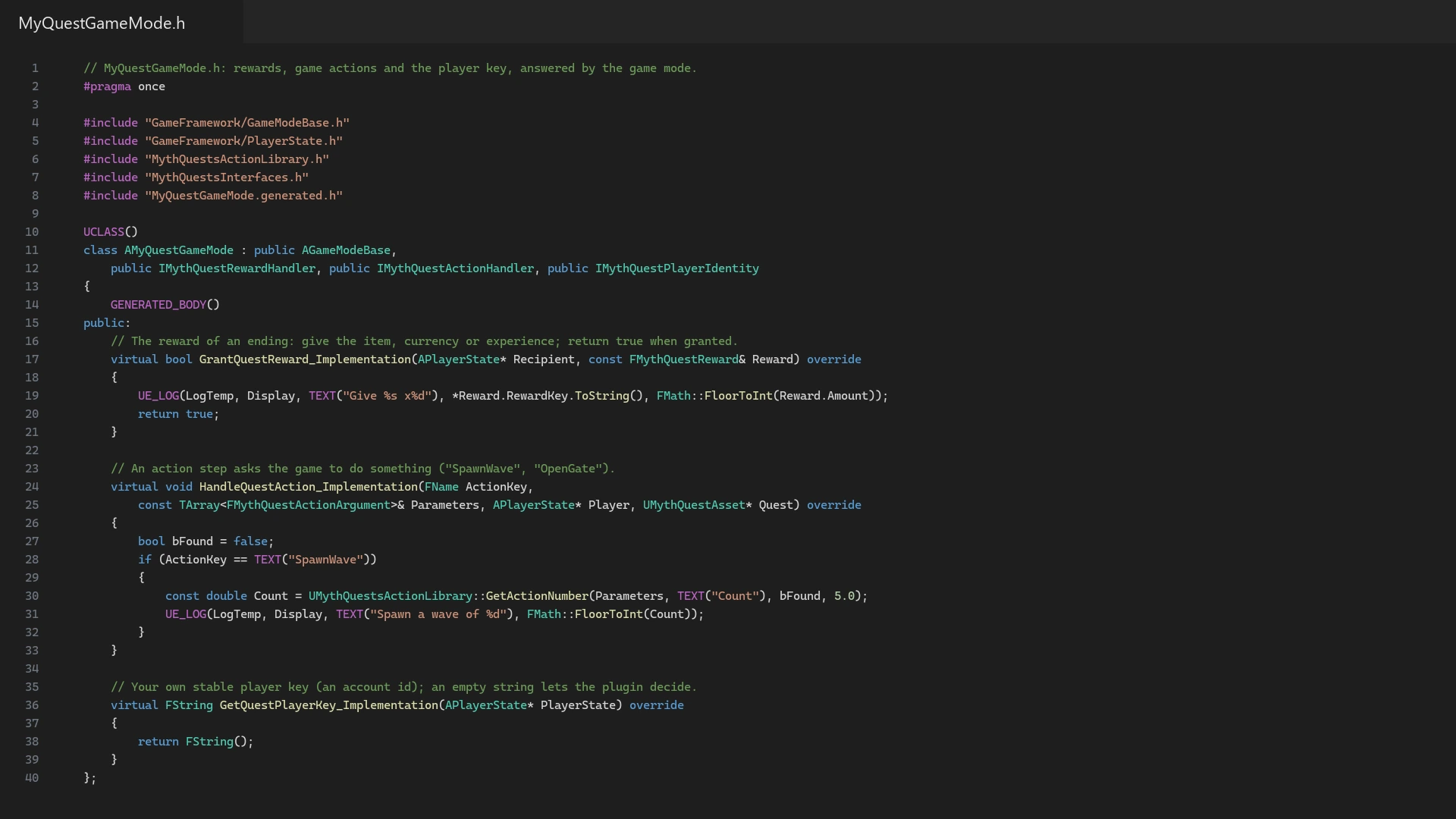
MyQuestGameMode.h// MyQuestGameMode.h: rewards, game actions and the player key, answered by the game mode.
#pragma once
#include "GameFramework/GameModeBase.h"
#include "GameFramework/PlayerState.h"
#include "MythQuestsActionLibrary.h"
#include "MythQuestsInterfaces.h"
#include "MyQuestGameMode.generated.h"
UCLASS()
class AMyQuestGameMode : public AGameModeBase,
public IMythQuestRewardHandler, public IMythQuestActionHandler, public IMythQuestPlayerIdentity
{
GENERATED_BODY()
public:
// The reward of an ending: give the item, currency or experience; return true when granted.
virtual bool GrantQuestReward_Implementation(APlayerState* Recipient, const FMythQuestReward& Reward) override
{
UE_LOG(LogTemp, Display, TEXT("Give %s x%d"), *Reward.RewardKey.ToString(), FMath::FloorToInt(Reward.Amount));
return true;
}
// An action step asks the game to do something ("SpawnWave", "OpenGate").
virtual void HandleQuestAction_Implementation(FName ActionKey,
const TArray<FMythQuestActionArgument>& Parameters, APlayerState* Player, UMythQuestAsset* Quest) override
{
bool bFound = false;
if (ActionKey == TEXT("SpawnWave"))
{
const double Count = UMythQuestsActionLibrary::GetActionNumber(Parameters, TEXT("Count"), bFound, 5.0);
UE_LOG(LogTemp, Display, TEXT("Spawn a wave of %d"), FMath::FloorToInt(Count));
}
}
// Your own stable player key (an account id); an empty string lets the plugin decide.
virtual FString GetQuestPlayerKey_Implementation(APlayerState* PlayerState) override
{
return FString();
}
};Saving and loading
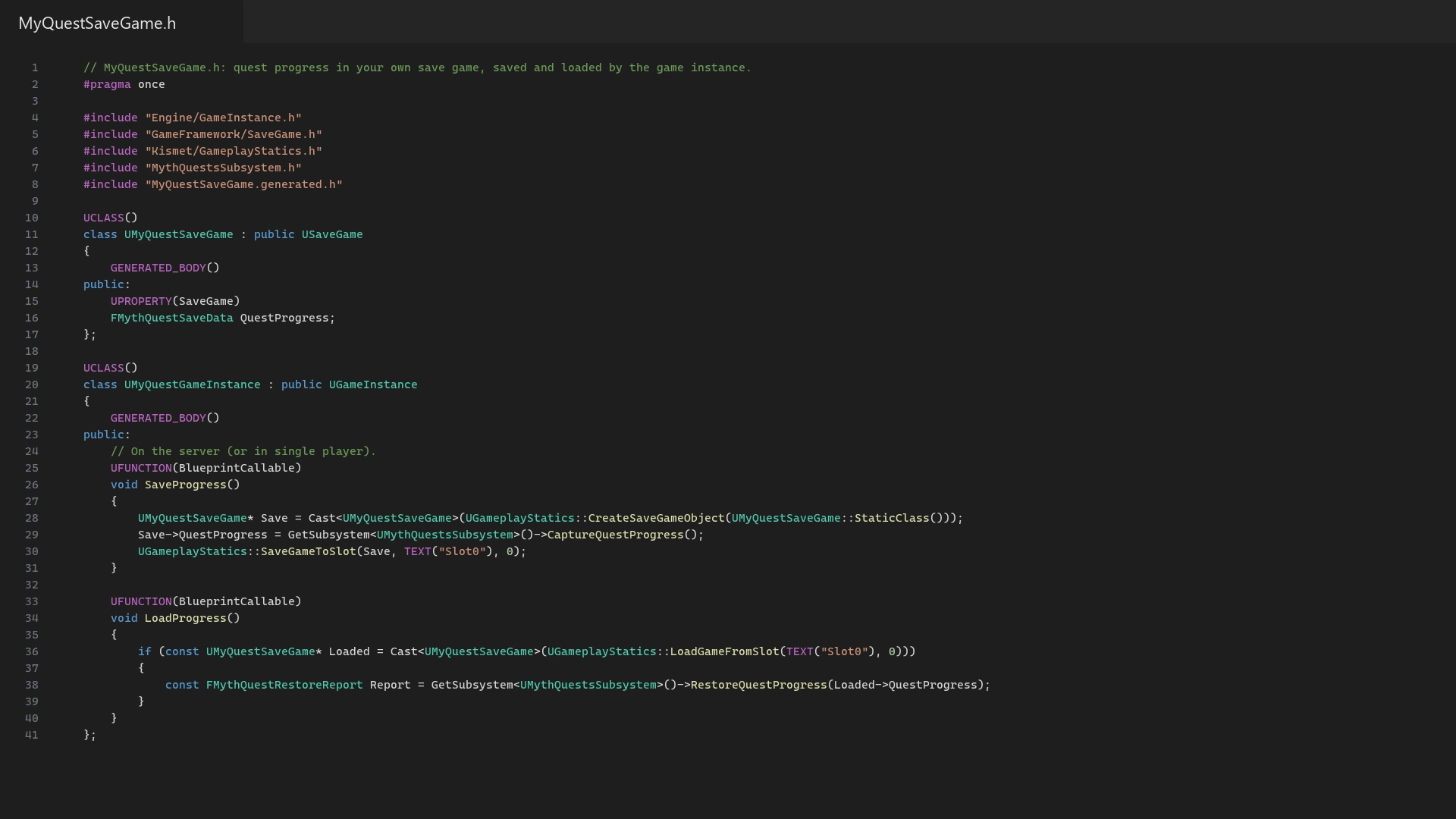
MyQuestSaveGame.h// MyQuestSaveGame.h: quest progress in your own save game, saved and loaded by the game instance.
#pragma once
#include "Engine/GameInstance.h"
#include "GameFramework/SaveGame.h"
#include "Kismet/GameplayStatics.h"
#include "MythQuestsSubsystem.h"
#include "MyQuestSaveGame.generated.h"
UCLASS()
class UMyQuestSaveGame : public USaveGame
{
GENERATED_BODY()
public:
UPROPERTY(SaveGame)
FMythQuestSaveData QuestProgress;
};
UCLASS()
class UMyQuestGameInstance : public UGameInstance
{
GENERATED_BODY()
public:
// On the server (or in single player).
UFUNCTION(BlueprintCallable)
void SaveProgress()
{
UMyQuestSaveGame* Save = Cast<UMyQuestSaveGame>(UGameplayStatics::CreateSaveGameObject(UMyQuestSaveGame::StaticClass()));
Save->QuestProgress = GetSubsystem<UMythQuestsSubsystem>()->CaptureQuestProgress();
UGameplayStatics::SaveGameToSlot(Save, TEXT("Slot0"), 0);
}
UFUNCTION(BlueprintCallable)
void LoadProgress()
{
if (const UMyQuestSaveGame* Loaded = Cast<UMyQuestSaveGame>(UGameplayStatics::LoadGameFromSlot(TEXT("Slot0"), 0)))
{
const FMythQuestRestoreReport Report = GetSubsystem<UMythQuestsSubsystem>()->RestoreQuestProgress(Loaded->QuestProgress);
}
}
};The journal in C++
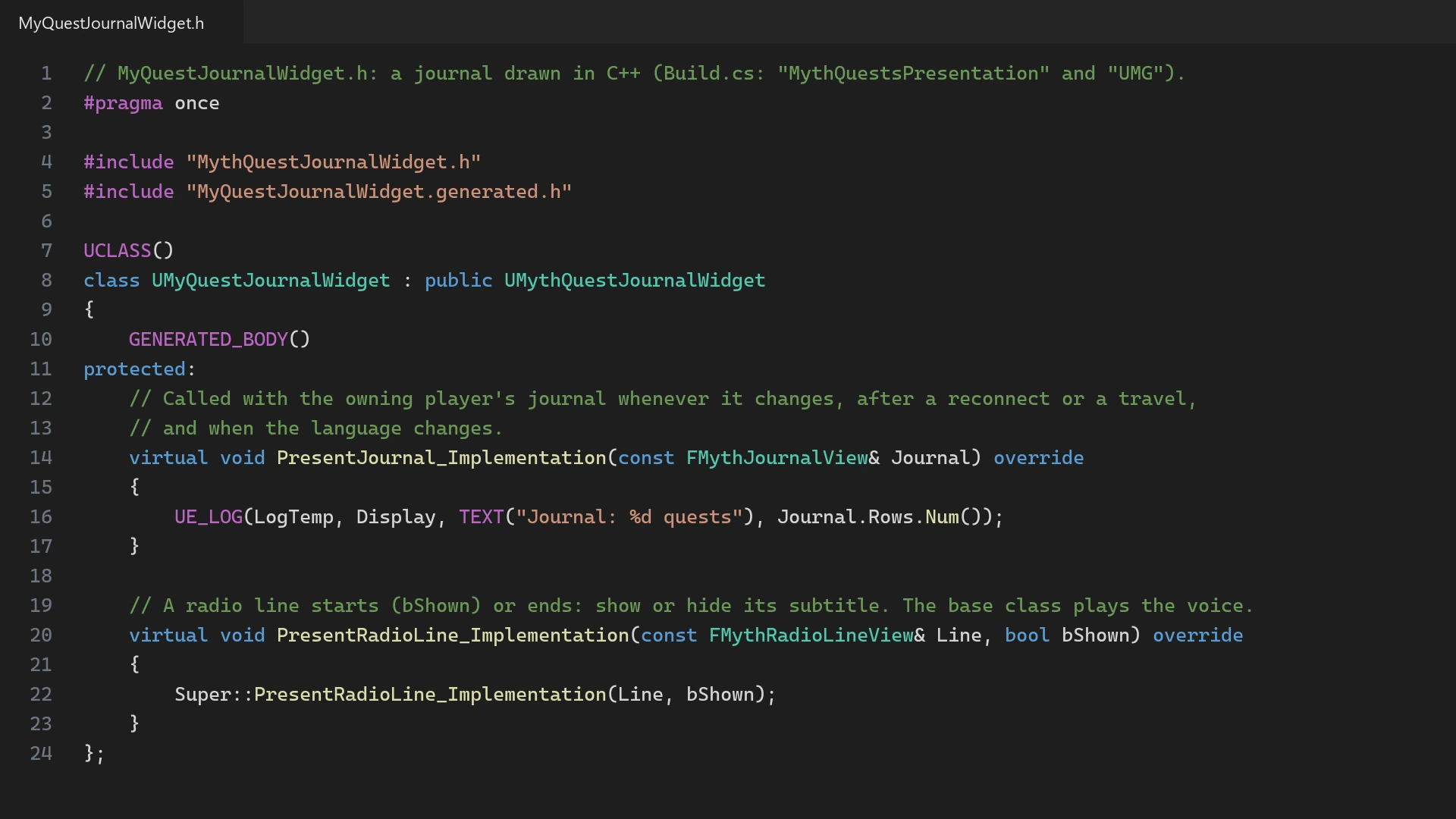
MyQuestJournalWidget.h// MyQuestJournalWidget.h: a journal drawn in C++ (Build.cs: "MythQuestsPresentation" and "UMG").
#pragma once
#include "MythQuestJournalWidget.h"
#include "MyQuestJournalWidget.generated.h"
UCLASS()
class UMyQuestJournalWidget : public UMythQuestJournalWidget
{
GENERATED_BODY()
protected:
// Called with the owning player's journal whenever it changes, after a reconnect or a travel,
// and when the language changes.
virtual void PresentJournal_Implementation(const FMythJournalView& Journal) override
{
UE_LOG(LogTemp, Display, TEXT("Journal: %d quests"), Journal.Rows.Num());
}
// A radio line starts (bShown) or ends: show or hide its subtitle. The base class plays the voice.
virtual void PresentRadioLine_Implementation(const FMythRadioLineView& Line, bool bShown) override
{
Super::PresentRadioLine_Implementation(Line, bShown);
}
};The plugin's modules
| Module | Where it runs | What it holds |
|---|---|---|
MythQuestsRuntime | game and editor | The UMythQuestsSubsystem
subsystem, components, interfaces, saving, networking. Headers: MythQuestsSubsystem.h,
MythQuestsComponents.h, MythQuestsListener.h, MythQuestsInterfaces.h,
MythQuestsActionLibrary.h, MythQuestsMedia.h, MythQuestsSave.h,
MythQuestsTypes.h, MythQuestDefinitions.h. |
MythQuestsPresentation | game and editor | The journal base class
UMythQuestJournalWidget (MythQuestJournalWidget.h), the base classes of the player-layer
widgets, the style asset class and the Myth Quest HUD component (MythQuestHudComponent.h). |
MythQuestsDebugger | editor and Development, not Shipping | The Gameplay Debugger
category and the MythQuests.* console commands. |
MythQuestsBlueprint, MythQuestsEditor, MythQuestsAuthoring | editor only | The quest call node, the importer, the editor inside Unreal. Game code does not need them. |
Component events are dynamic multicast delegates: a handler must be a UFUNCTION() (like
HandleQuestCompleted above). Code that needs every change of the quest system has
UMythQuestsSubsystem::OnChange (C++ only).
16Connecting to your game's systems
The plugin does not know what your game's inventory, AI or saving is. It talks to the game through a few clear points. The table below shows which game system connects through which point.
| Game system | Into the quest (game → quest) | Out of the quest (quest → game) |
|---|---|---|
| Inventory, item pickup | Send Quest Event with a Number ("picked up 3 scraps"), or a number fact with Set Fact Number / Change Fact Number | Ending rewards: the Myth Quest Reward Handler interface → Grant Quest Reward |
| Combat, AI, spawning | Send Quest Event with Record = a world record key ("which enemy was killed") | Game actions: Myth Quest Action Handler → Handle Quest Action ("SpawnWave", "OpenGate"), parameters through Get Action Number / Bool / Entity / Name / Text |
| Doors, triggers, interactables | Send Quest Event from the actor; from a client, Request Quest Event on the player component | The Myth Quest Listener component on the actor: On Objective Reached, On Fact Became, filtered by quest, goal and fact |
| Weather, time of day, season | The Myth Quest Condition Provider interface → Evaluate Quest Condition; on a change, Notify Quest Condition Changed | — |
| Dialogue system / dialogue UI | Advance Scene, Choose Answer (on a client, Request Advance Scene, Request Choose Answer) | Begin Scene, Get Active Scene, the On Scene Changed event |
| Sound, subtitles, radio | Report Radio Line Finished (Play Id) | On Radio Line Started / On Radio Line Ended; the journal widget plays the voice itself, Present Radio Line draws the subtitle |
| HUD, journal | — | A widget based on Myth Quest Journal Widget → Present Journal; the queries Get Journal, Find Journal Row, Get Objectives |
| Save games | Restore Quest Progress / Restore Player Progress | Capture Quest Progress / Capture Player Progress → a Myth Quest Save Data variable (SaveGame flag) in your Save Game |
| Accounts, online | The Myth Quest Player Identity interface → Get Quest Player Key | — |
| Level changes | Nothing to connect: progress lives in the Game Instance, and the components
appear in every new world by themselves. Before a seamless travel, release the remote players' pawns (as the
sample's BP_TravelGate does in its TravelNow function). | |
| Networking, co-op | The co-op rule is in the quest itself (who advances, who gets credit and rewards, late join, leaving, abandoning). Set Party Leader / Get Party Leader. The server and the clients must load the same catalogs. | |
Server and client. Everything that changes quest state runs on the server (in single player, you are the server). On a client such calls answer Not Authority. A client asks through the Myth Quest Player Component (Request Start Quest, Request Quest Event, Request Abandon Quest, Request Begin Scene…); a refusal arrives as the On Request Refused event. Reads (Get …, Is …) work everywhere.
17Debugging and common problems
Tools
- Set Quest Debugger Visible (Player Controller, Visible) shows the Myth Quests Gameplay Debugger category: the player's quests, goals, facts, the party and the world, rewards and rolls. Is Quest Debugger Available tells whether the module is loaded (it is absent in Shipping).
- Console:
MythQuests.List,MythQuests.Start,MythQuests.Complete,MythQuests.Fail,MythQuests.Abandon,MythQuests.Jump,MythQuests.SetFact,MythQuests.Facts,MythQuests.History,MythQuests.Timers,MythQuests.Time.Add,MythQuests.Time.Expire,MythQuests.Window,MythQuests.Condition,MythQuests.DumpSave,MythQuests.Seed,MythQuests.Radio.Dump,MythQuests.Radio.Skip. Output goes to the console and to theLogMythQuestsDebuggerlog. - The ready line in the Output Log:
LogMythQuests: Display: Quest system ready: N catalogs, M quests loaded in … ms. - The server runs commands from a client only where Project Settings → Myth Quests → Debugger → Client Debug Commands allows it.
Common problems
| What you see | Cause | What to do |
|---|---|---|
| Start Quest answers Not Ready | The catalogs are still loading, or the catalog is not registered | Add the catalog to Project Settings → Myth Quests → Catalogs; start from On Quest System Ready or after Is Ready = true |
| Unknown Quest | The quest asset is not in a registered catalog, or the quest was deleted from the project | Publish the project again; check the catalog is in the list |
| Not Authority | The call was made on a client | Call it on the server, or through the Request functions of the player component |
| Deferred right after Play | The player is connected but not yet identified | Nothing: the
start runs as soon as the player is identified (MythQuests.List shows it) |
| A goal does not count | The event has a different key, a counting goal got an event with no number, or the goal is "Only events for this quest" and the event arrived without a Quest | Check the event key against the integration sheet; for counters pass a Number ≥ 1 |
An empty journal on a client and the error The server runs different quest catalogs | The server and the client have different catalogs | The same catalog list everywhere |
| An import error about a picture | The .mqexport.media folder is not next to the
file | Put both side by side and drag the file in again |
| GameplayTag warnings on import | The project lacks tags the export names | Add to project tags in the Message Log, then Reimport or Publish again |
A dedicated server build fails: Server targets are not currently supported from this engine
distribution | The Epic Games Launcher engine does not build the Win64 Server target; this is an engine limit, not a plugin one | Build Unreal Engine 5.8 from source and build the server with it; in the
editor a dedicated server (-server, Play In Editor in dedicated mode) works on the Launcher engine
too |
| Under Iris the journal is empty in a packaged game | The Iris plugin is not enabled, or there is no subobject list | Enable the Iris plugin; in Config/DefaultEngine.ini, section
[SystemSettings]: net.SubObjects.DefaultUseSubObjectReplicationList=1 |
18Integration reference
A summary for whoever connects the plugin to a game (a person or an AI agent). Names are as in Unreal: a Blueprint
node has the same name as the C++ function, with spaces (SendQuestEvent → Send Quest Event). In
Blueprint the subsystem comes from the Get Myth Quests node, in C++ from
GetGameInstance()->GetSubsystem<UMythQuestsSubsystem>(). The "Where" column: S, server
only (on a client the answer is Not Authority); C, client (a request to the server); S/C,
everywhere.
Connect Myth Quests to an existing project
- The plugin is in the project's
Plugins/MythQuests(or in the engine, from Fab), Edit → Plugins → Myth Quests is enabled, and the editor has been restarted. - The quests get into the project: Window → Myth Quests → the project →
Publish… (or Project → Export…) → Publish to the
Unreal project, or drag an
.mqexportinto the Content Browser. The result:/Game/MythQuests/<project key>/<project key>(the catalog) and…/Quests/<quest key>. - The catalog is in Project Settings → Myth Quests → Catalogs. Check: Play →
Quest system ready: N catalogs, M quests loadedin the Output Log. - Components: Myth Quest Player Component on the Player State, Myth Quest Shared Component on the Game State (or nothing: the plugin adds them itself; your own are needed to bind events). The Game Mode uses these Player State and Game State classes.
- Starting quests: on the server, Start Quest after On Quest System Ready; on a client, Request Start Quest. Quests with an automatic start start by themselves.
- Events and facts from the game: Send Quest Event (the event keys come from the integration sheet, More → This graph → Game integration sheet…), Set Fact Bool / Number, Change Fact Number.
- Handlers, if the quests use them: rewards (Myth Quest Reward Handler), game actions (Myth Quest Action Handler), game conditions (Myth Quest Condition Provider), the player key (Myth Quest Player Identity), permission for dialogue (Myth Quest Scene Request Handler).
- Display: a widget based on Myth Quest Journal Widget (Present Journal), created for each local
player; world reactions through Myth Quest Listener or a child of
BP_MythQuestDirector. - Saving: a Myth Quest Save Data variable (SaveGame) in your Save Game; Capture Quest Progress when saving, Restore Quest Progress when loading, on the server.
- Under Iris: the Iris plugin is enabled, and
net.SubObjects.DefaultUseSubObjectReplicationList=1is in the[SystemSettings]section ofConfig/DefaultEngine.ini.
The Myth Quests subsystem (UMythQuestsSubsystem)
| Function / event | What it does | Where |
|---|---|---|
| On Quest System Ready (event) | The catalogs are loaded; you can start quests and restore save games | S/C |
| Is Ready | Whether the system is ready | S/C |
| Register Catalog (Catalog) | Add a catalog during play (on every machine, before players join) | S/C |
| Get Loaded Catalogs | The loaded catalogs | S/C |
| Find Quest (Quest Key) | The quest asset by key | S/C |
| Start Quest (Quest, Target, Instigator) | Start a quest. Answer: Started, Already Active, Already Finished, Unavailable, Conditions Not Met, Waiting, Not Ready, Unknown Quest, No Target, Not Authority, Deferred | S |
| Can Start Quest (Quest, Target) | The same answer, without starting | S/C |
| Abandon Quest (Quest, Target, Instigator) | Abandon a quest under the co-op rule | S |
| Force Outcome (Quest, Target, Outcome Key) | Force a quest to end with an ending | S |
| Send Quest Event (Event Key, Instigator, Number, Record, Quest) | Report a game event | S |
| Send Quest Event By Tag (Event Tag, …) | The same, by the event's GameplayTag | S |
| Complete Objective, Set Objective Progress | Close a goal / set its progress directly | S |
| Set Fact Bool, Set Fact Number, Change Fact Number, Clear Fact (+ By Tag) | Write a fact; an empty Target means a party or world fact | S |
| Get Fact Bool, Get Fact Number, Get Fact (+ By Tag) | Read a fact and Known (an unknown fact is neither false nor 0) | S/C |
| Find Event Key By Tag, Find Fact Key By Tag, Get Event Tag, Get Fact Tag, Get Quest Action Tag | Convert between keys and GameplayTags | S/C |
| Get Quest Status, Is Quest Active, Get Quest Outcome, Has Completed Quest, Is Quest Available | The quest's state | S/C |
| Get Quest Takes, Get Repeat Wait Remaining | Repeatable quests: how many runs, and how long to wait | S/C |
| Get Active Quests, Get Objectives, Get Journal, Find Journal Row | Data for the HUD and the journal | S/C |
| Get Remaining Time, Get Quest Timers, Get Quest Time Limit | Step timers and the time limit | S/C |
| Pause Quest Timers, Resume Quest Timers | Pause a quest's timers | S |
| Set Condition Provider, Notify Quest Condition Changed | Game conditions | S |
| Set Reward Handler, Set Action Handler, Set Scene Request Handler | Assign a handler object | S |
| Set Reward Roll Mode / Get Reward Roll Mode | How rewards with a chance are rolled: As Authored, Per Recipient, Shared Per Group | S / S/C |
| Begin Scene, Advance Scene, Choose Answer | Dialogue | S |
| Get Active Scene, Has Played Scene | What to show in a dialogue; whether a dialogue has played | S/C |
| Report Radio Line Finished, Interrupt Radio Channel | The end / interruption of a radio line | S |
| Get Playing Radio Line | The channel's current line (for a late join) | S/C |
| Set Party Leader / Get Party Leader | The party leader | S / S/C |
| Capture Quest Progress, Restore Quest Progress | Save/load all progress | S |
| Capture Player Progress, Restore Player Progress | The same for one player | S |
| Set Quest Debugger Visible, Is Quest Debugger Available | The debugger (not in Shipping) | S/C |
| Wait For Quest Status (latent node) | Continue when the quest reaches a status (Reached / Cancelled) | S/C |
OnChange (C++ only) | Every change of the quest system | S/C |
Components
| Component | Goes on | Functions | Events |
|---|---|---|---|
Myth Quest Player Component (UMythQuestPlayerComponent) | Player State | Request Start Quest, Request Abandon Quest, Request Quest Event, Request Quest Event By Tag, Request Begin Scene, Request Advance Scene, Request Choose Answer, Request Debug Command (all C; the answer is a request number) | the common events below + On Request Refused (Request Id, Refusal), On Scene Changed, On Reward Granted, On Reward Not Awarded, On Debug Output |
Myth Quest Shared Component (UMythQuestSharedComponent) | Game State | — | the common events below, for party and world quests |
Myth Quest Listener (UMythQuestListenerComponent) | any actor | Get Followed Player; filters in the details: Quest, Objective Key, Fact Key, Radio Channel | the common events below + On Objective Reached, On Fact Became, On Scene Changed |
Common events (on all three): On Quest Started, On Quest Updated, On Objective Changed, On Quest Completed, On Quest Failed, On Quest Abandoned, On Quest Suspended, On Quest Resumed, On Fact Changed, On Journal Changed, On Timer Started, On Timer Paused, On Timer Resumed, On Timer Expired, On Quest State Changed, On Radio Line Started, On Radio Line Ended. A late join, a reconnect and a level change call only On Quest State Changed: re-read what you show when it fires.
Interfaces the game implements
| Interface | Function | Who is asked when none is assigned |
|---|---|---|
| Myth Quest Reward Handler | Grant Quest Reward (Recipient, Reward) → bool | Game Mode, Game State, the recipient's Player State |
| Myth Quest Action Handler | Handle Quest Action (Action Key, Parameters, Instigator, Quest) | Game Mode, Game State, the instigator's Player State |
| Myth Quest Condition Provider | Evaluate Quest Condition (Condition Key, Player State) → True / False / Unknown | Game Mode, Game State, Player State |
| Myth Quest Scene Request Handler | Approve Scene Request (Scene Key, Player) → bool | Game Mode, Game State; with neither, everything is allowed |
| Myth Quest Player Identity | Get Quest Player Key (Player State) → String (empty: the plugin decides) | Game Mode or Game Instance |
Libraries and the rest
- Get Action Number / Get Action Bool / Get Action Entity / Get Action Name / Get Action Text (Parameters, Name, out Found): game action parameters.
- Get Media Role, Find Quest Media, Find Catalog Media, Get Reaction Step Media: pictures of quests, steps and entries.
- Myth Quest Journal Widget: Present Journal (override), Refresh Journal, Get Journal, Is Journal Bound, Present Radio Line (override), Get Shown Radio Line.
- Quest Calls in the Blueprint action menu: a node bound to a specific quest, with drop-down keys for its goals, endings, timers and events: Start Quest, Can Start Quest, Abandon Quest, Force Quest Outcome, Complete Objective, Set Objective Progress, Get Quest Status, Get Objective States, Get Remaining Time, Pause Quest Timers, Resume Quest Timers, Is Quest Available, Switch on Quest Outcome, Send Quest Event.
/MythQuests/QuestComponent/BP_MythQuestDirector: a level actor; every quest event calls the function with the same name; inherit from it and override the ones you need.